Tahoe Theme
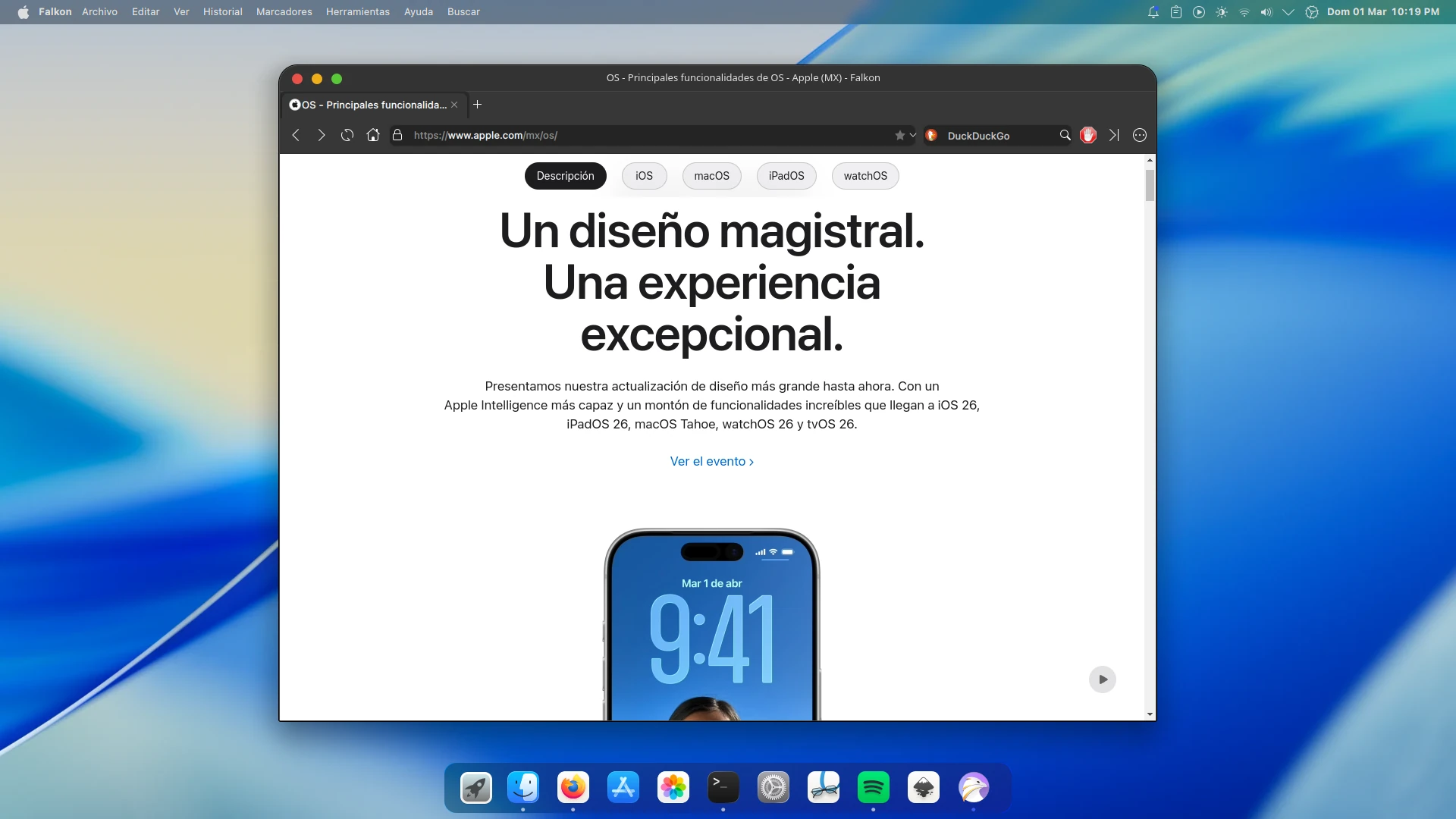
While some Linux and KDE users disapprove of setups that mimic other operating systems, there’s no denying that mimicking macOS is one of the most popular goals among Linux users. For that reason, I’m sharing this complete tutorial to achieve what I consider the best macOS imitation on KDE Plasma 6.6.
Prerequisites
Before you begin, make sure you have kpackagetool6 installed. You can install it according to your distribution:
- Ubuntu and derivatives:
sudo apt install kpackagetool6 - Arch Linux and derivatives:
sudo pacman -Syu kpackage - Fedora:
sudo dnf install kpackage - openSUSE:
sudo zypper install kpackage
The installation will be carried out mostly from the terminal, so open one and make sure you are not inside any subdirectory by running cd:
cd
Now download the themes and plasmoids we will use with the following command:
wget https://github.com/zayronxio/Librepixels.Page.cdn/releases/download/tahoetheme/tahoethemes.tar.xz
Extract the archive with this command:
tar -xJf tahoethemes.tar.xz
Ensure the target directories exist:
mkdir -p ~/.local/share/{icons,aurorae/themes,color-schemes} ~/.fonts
Now proceed with the installation. Enter the directory containing the themes:
cd tahoethemes
Install the Plasma theme (AppleDark-ALL):
kpackagetool6 -t Plasma/Theme -i AppleDark-ALL.tar.xz && rm AppleDark-ALL.tar.xz
Install the Aurorae window decoration theme:
tar -xzvf MacTahoe-aurorae.tar.gz -C $HOME/.local/share/aurorae/themes && rm MacTahoe-aurorae.tar.gz
Install the color scheme:
tar -xJf MkosBigSurDark.tar.xz -C $HOME/.local/share/color-schemes && rm MkosBigSurDark.tar.xz
Install the icons:
tar -xJf 01-MacTahoe.tar.xz -C $HOME/.local/share/icons && rm 01-MacTahoe.tar.xz
Install the font:
tar -xJf fonts.tar.xz -C $HOME/.fonts && rm fonts.tar.xz
Install the 4 plasmoids:
kpackagetool6 -t Plasma/Applet -i org.kpple.kppleMenu.tar.xz && rm org.kpple.kppleMenu.tar.xz
kpackagetool6 -t Plasma/Applet -i Plasma.AppBay.tar.xz && rm Plasma.AppBay.tar.xz
kpackagetool6 -t Plasma/Applet -i Plasma.Flex.Hub.tar.xz && rm Plasma.Flex.Hub.tar.xz
kpackagetool6 -t Plasma/Applet -i org.kde.windowtitle.Fork.tar.xz && rm org.kde.windowtitle.Fork.tar.xz
Run the following command to verify that all plasmoids have been installed correctly. This step is very important — retry the process if any are missing:
- org.kde.windowtitle.Fork
- org.kpple.kppleMenu
- Plasma.Flex.Hub
- Plasma.AppBay
kpackagetool6 -t Plasma/Applet --list
Desktop Configuration
Manually configuring every element of each KDE Plasma panel can be very time-consuming. Instead, we will use plasma-interactiveconsole to run a JS script that does everything for us. Use this command in the terminal to open the console:
plasma-interactiveconsole
In the console window, click Open and look for the file scriptFullConfigs inside the tahoetheme directory in your home folder. Its contents will load automatically. Feel free to review the code if you wish. Keep in mind that running it will erase your current panel configuration and replace it with the theme’s layout.
Important: do not run this script unless you have confirmed that all plasmoids are installed. Otherwise the process will be interrupted and you may end up with no panels.
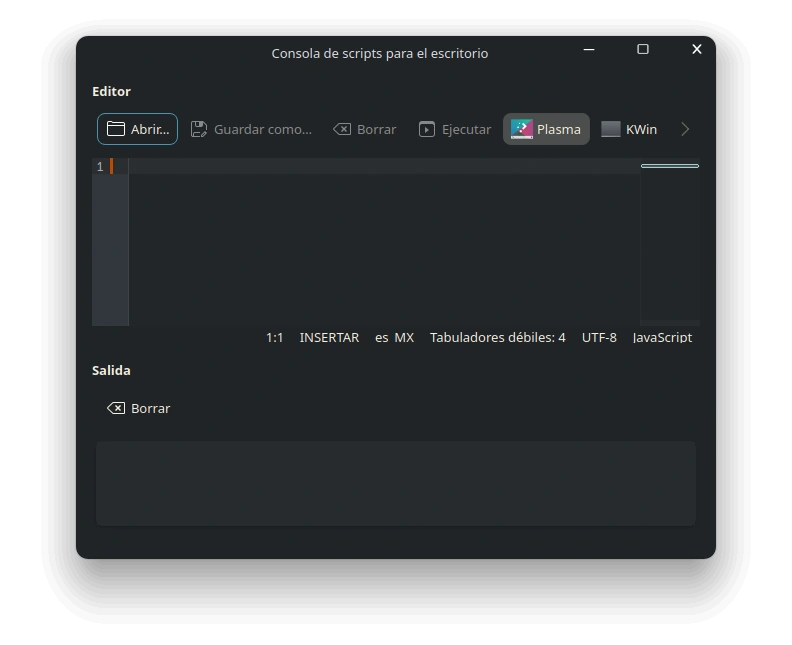
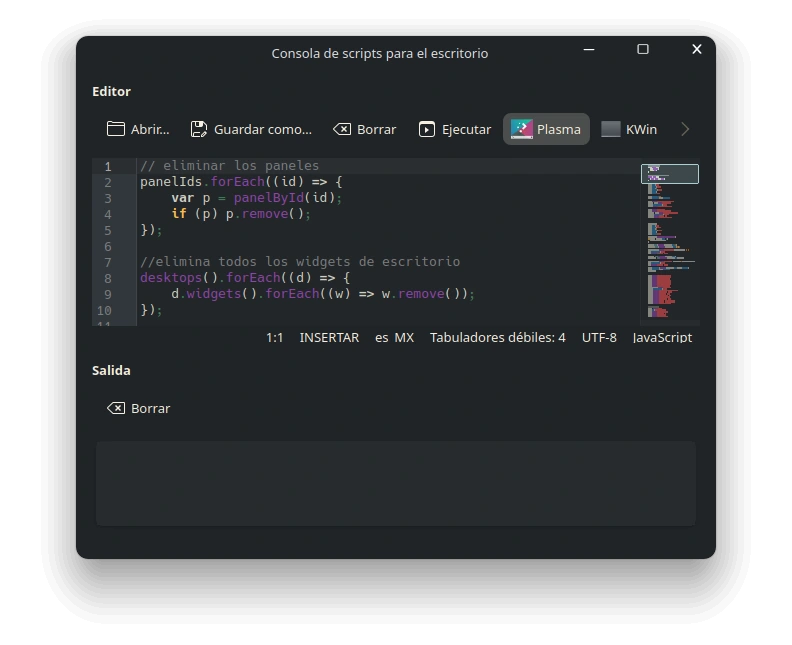
Once executed, the panels and widgets will be configured automatically.
Configuring Themes, Colors, Icons and Aurorae
First, let’s try applying settings from the terminal.
Apply the Plasma theme and color scheme:
plasma-apply-desktoptheme AppleDark-ALL && plasma-apply-colorscheme MkosBigSurDark
Open the KDE Plasma System Settings:
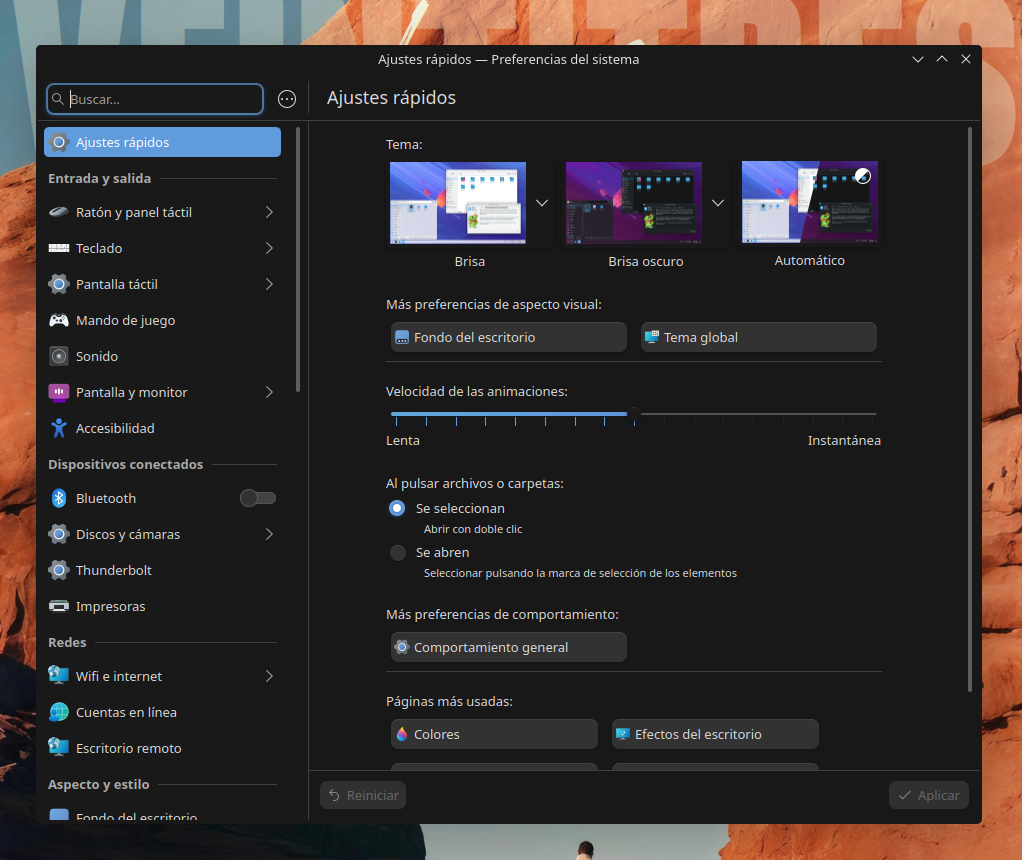
In the left panel, go to “Colors & Themes”; under Window Decorations select “MacTahoe Dark”, and under Icons select “MacTahoe-Dark”.
To activate the font, go back to the System Settings main screen and type “font” in the search box. Open the Fonts section and, under the subsections General, Toolbar, Menu, and Window Title, select the font SF Pro Text Regular 10.
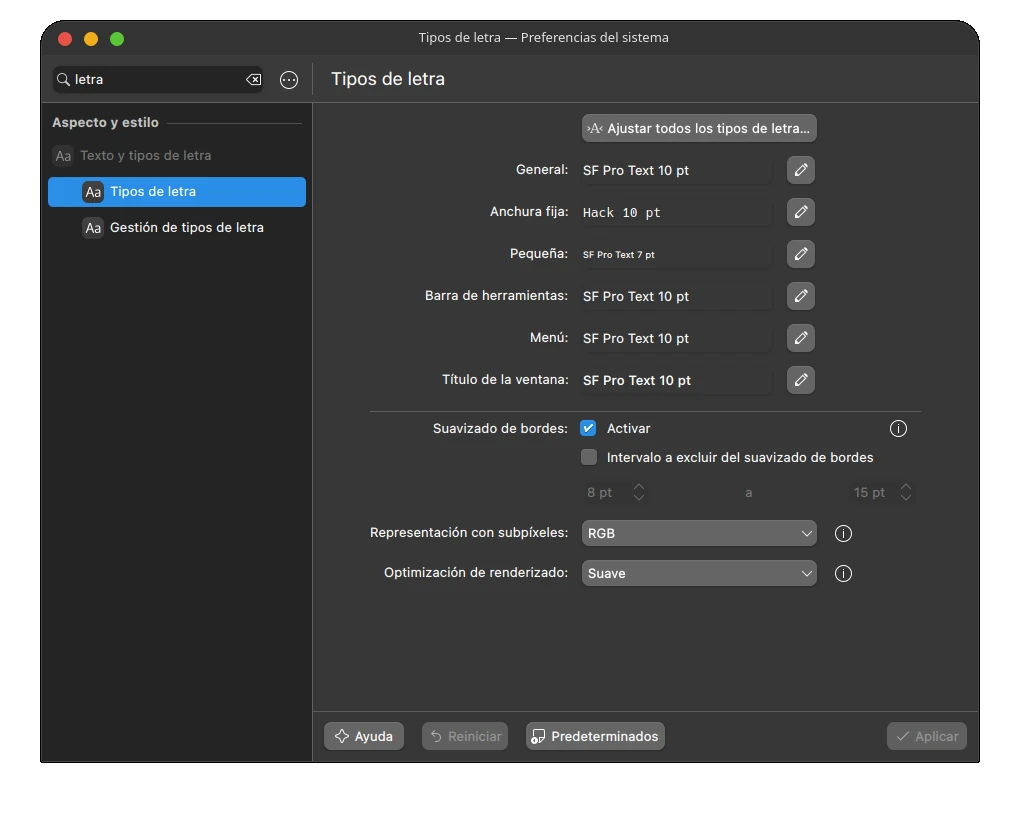
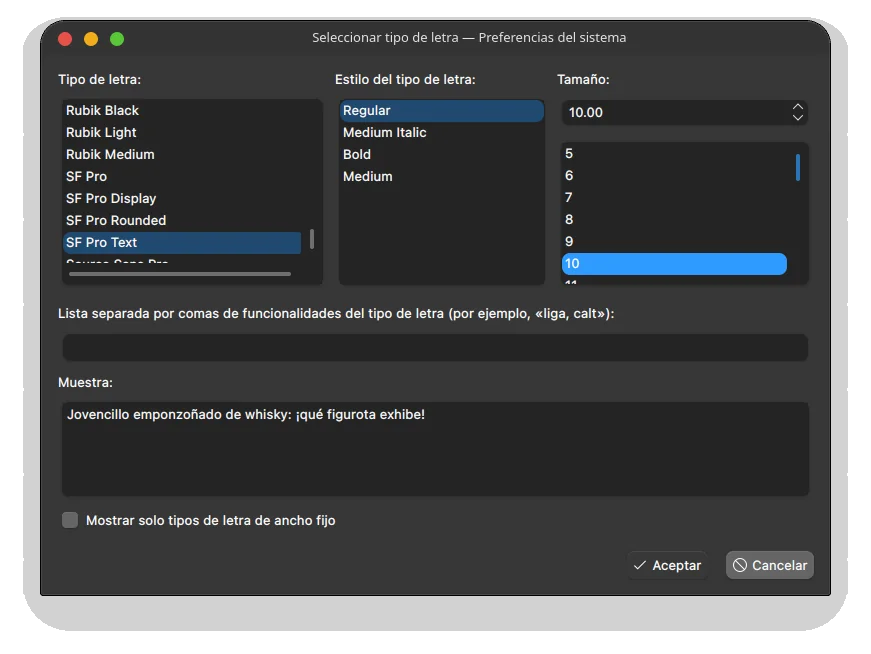
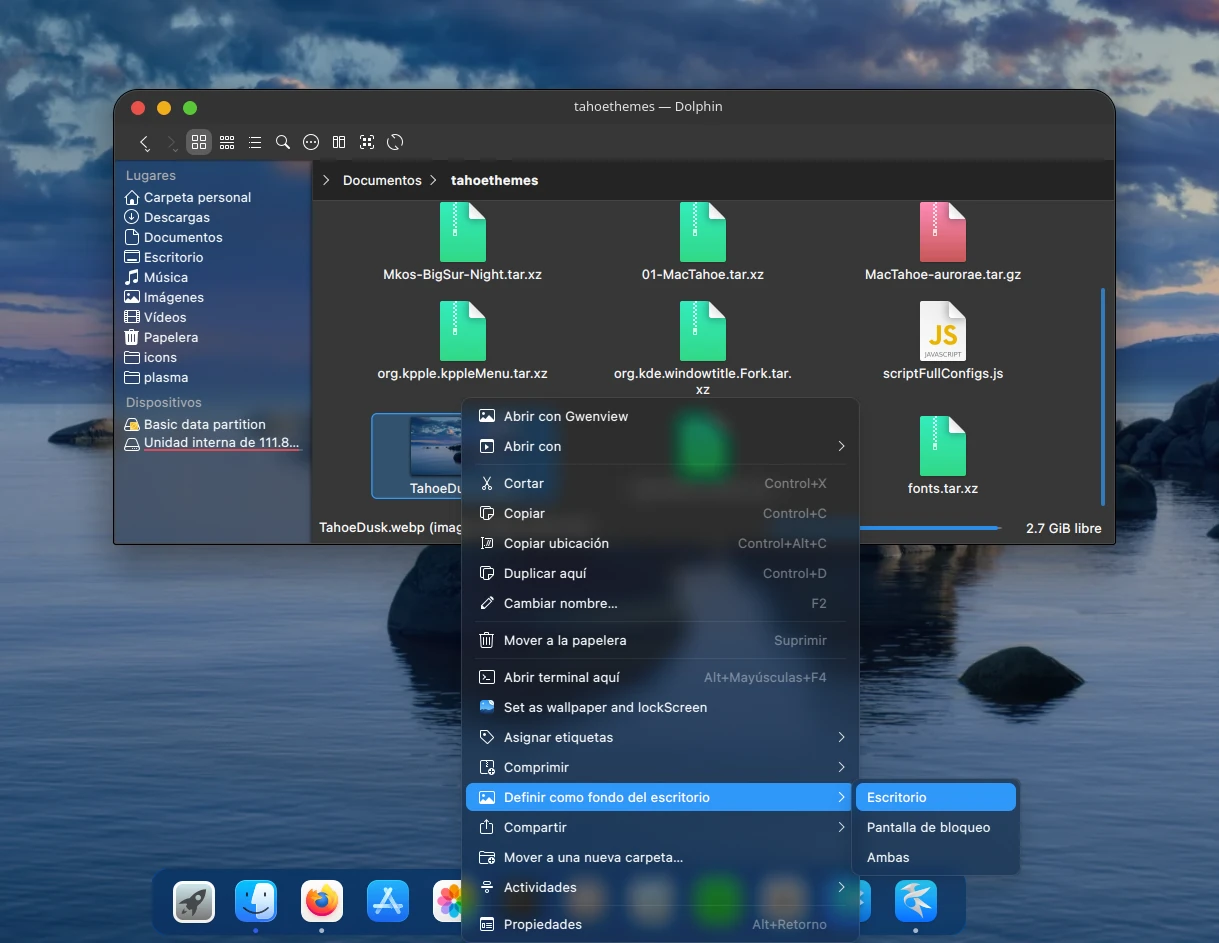
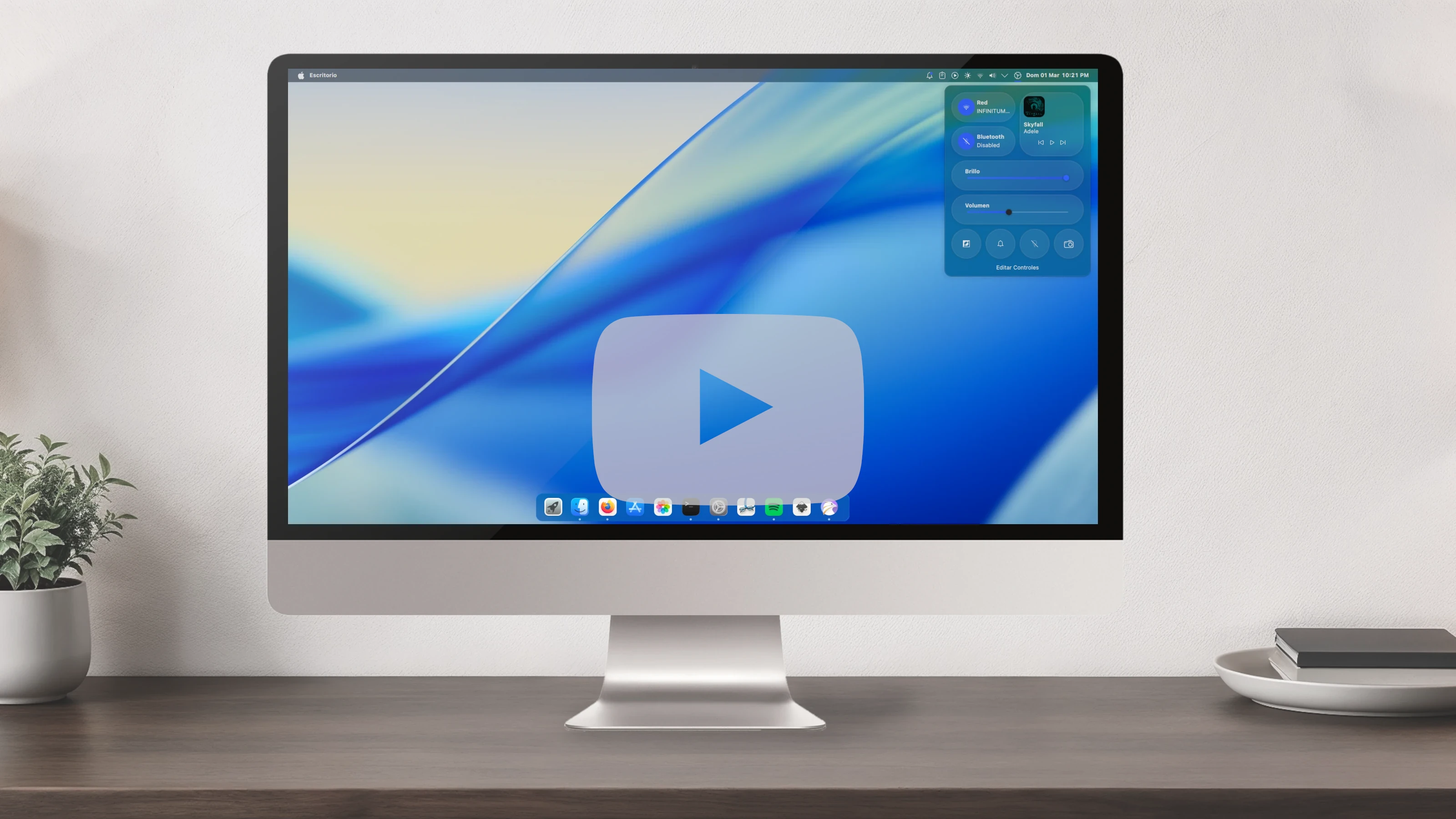
At this point, the desktop should look very similar to the screenshot at the top. The only thing missing is the wallpaper. Inside the tahoetheme folder in your home directory, you will find TahoeDusk.webp — apply it by right-clicking on the desktop.
Credits
To vinceliuice for the Aurorae window decoration theme: MacTahoe
To verismei for the icon theme: MacTahoe Icons
Comentarios