Nord v2 Theme
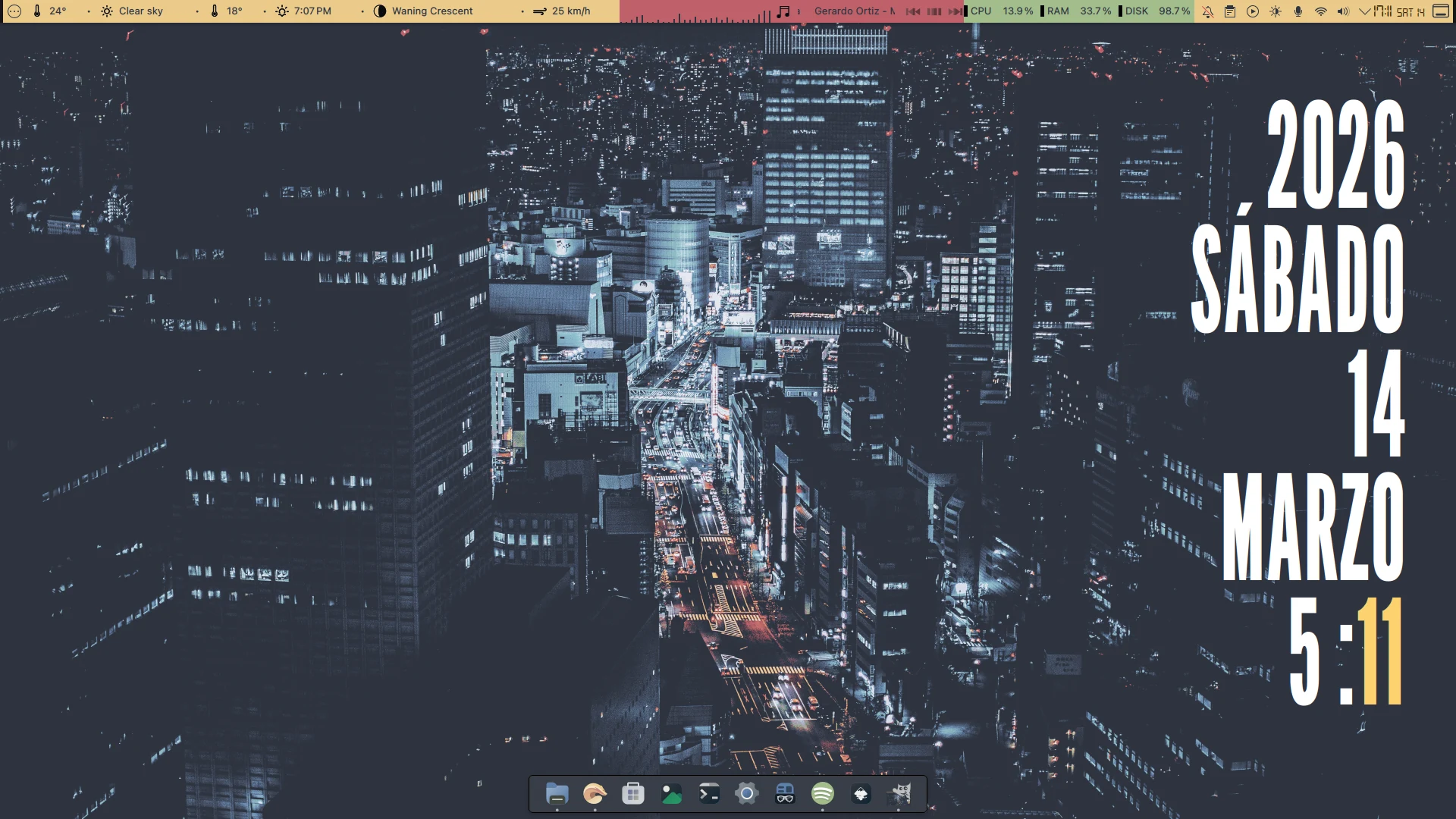
This is an even more minimal setup than the one I shared before — I hope you like it.
Prerequisites
Before you start, make sure kpackagetool6 is installed. Install it for your distribution using the appropriate command below:
# Ubuntu and derivatives
sudo apt install kpackagetool6 cava qt6-websockets-dev python3-websockets

# Arch Linux and derivatives
sudo pacman -Syu kpackage cava qt6-websockets python-websockets

# Fedora
sudo dnf install kpackage cava qt6-qtwebsockets-devel python-websockets

# openSUSE
sudo zypper install kpackage cava qt6-websockets-imports python3-websockets
Download and installation
Open a terminal and make sure you are in your home directory. The entire process takes place from here:
cd ~
Download and extract the themes in a single step:
wget -qO- https://github.com/zayronxio/Librepixels.Page.cdn/releases/download/nordthemev2/nordv2themes.tar.xz | tar -xJ
Create the required directories if they don’t exist:
mkdir -p ~/.local/share/{icons,aurorae/themes,color-schemes} ~/.fonts
Navigate into the themes directory:
cd ~/nordv2themes
Install all components in sequence. You can copy and paste the entire block into the terminal:
# Plasma theme
kpackagetool6 -t Plasma/Theme -i Zephyr.tar.xz && rm Zephyr.tar.xz

# Window decoration (Aurorae)
tar -xJf ketsaSquare.tar.xz -C ~/.local/share/aurorae/themes && rm ketsaSquare.tar.xz

# Color scheme
tar -xJf ZafiroNordBlue.tar.xz -C ~/.local/share/color-schemes && rm ZafiroNordBlue.tar.xz

# Icons
tar -xJf ColorFlow.tar.xz -C ~/.local/share/icons && rm ColorFlow.tar.xz

# Font
tar -xJf digital_7.tar.xz -C ~/.fonts && rm digital_7.tar.xz

# Plasmoids
kpackagetool6 -t Plasma/Applet -i org.kde.Big.Clock.tar.xz && rm org.kde.Big.Clock.tar.xz
kpackagetool6 -t Plasma/Applet -i htmlclock-2.1.0.plasmoid && rm htmlclock-2.1.0.plasmoid
kpackagetool6 -t Plasma/Applet -i luisbocanegra.desktop.wallpaper.effects.tar.xz && rm luisbocanegra.desktop.wallpaper.effects.tar.xz
kpackagetool6 -t Plasma/Applet -i plasmoid-panel-colorizer-v6.8.1.plasmoid && rm plasmoid-panel-colorizer-v6.8.1.plasmoid
kpackagetool6 -t Plasma/Applet -i advanced-weather-widget.plasmoid && rm advanced-weather-widget.plasmoid
kpackagetool6 -t Plasma/Applet -i Kurve-v3.5.0.plasmoid && rm Kurve-v3.5.0.plasmoid
kpackagetool6 -t Plasma/Applet -i plasmusic-toolbar-v4.0.0.plasmoid && rm plasmusic-toolbar-v4.0.0.plasmoid
Do not continue if any installation fails; reinstall the missing plasmoid before proceeding.
Desktop configuration
Manually configuring all KDE Plasma panels takes a long time. Instead, we will use plasma-interactiveconsole to run a JS script that handles everything automatically.
Warning: Running the script will delete your current panel configuration. Make sure all plasmoids are installed before continuing.
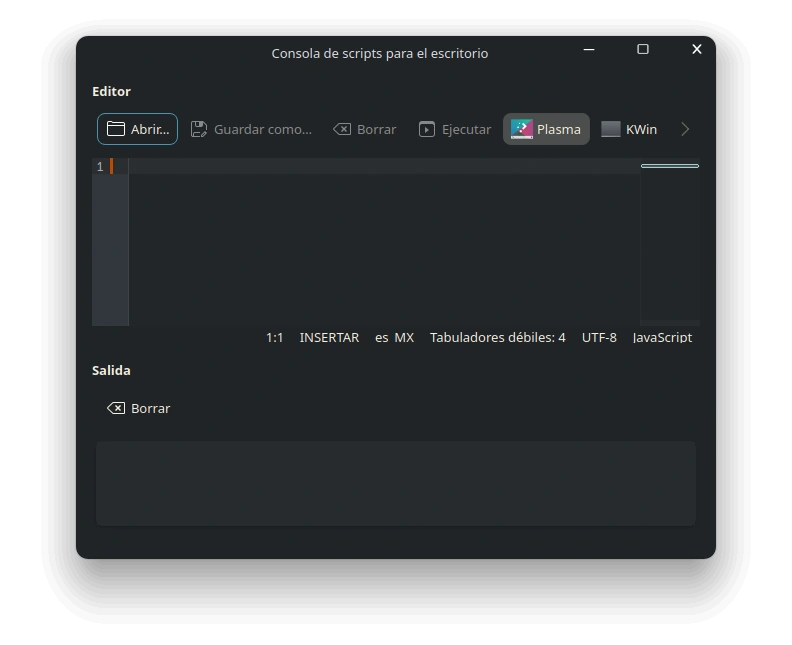
Open the interactive console:
plasma-interactiveconsole
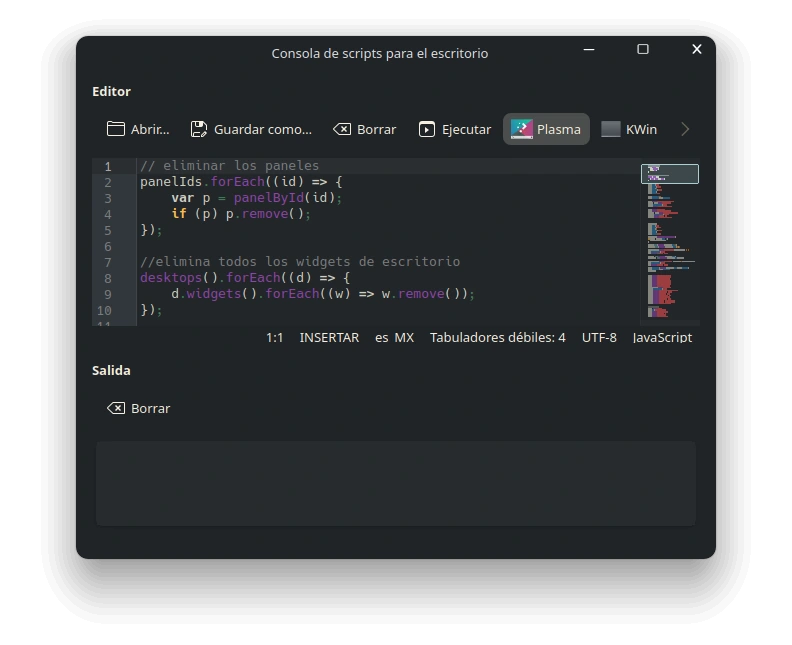
In the window, click “Open” and select the scriptFullConfigs file inside the ~/nordv2themes directory. Its contents will be loaded automatically. You can review the code before running it. Once executed, the panels and widgets will be configured automatically.
Panel Colorizer
The configuration is only partially applied when the JS script runs and must be completed manually. Right-click on the top panel and select “Configure Panel Colorizer”. Navigate to the Text/Icon Fixes section and, in the list on the right, find the Advanced Weather Widget and PlasMusic Toolbar plasmoids; enable all 3 available options for each: Mask, Effect, and Refresh.
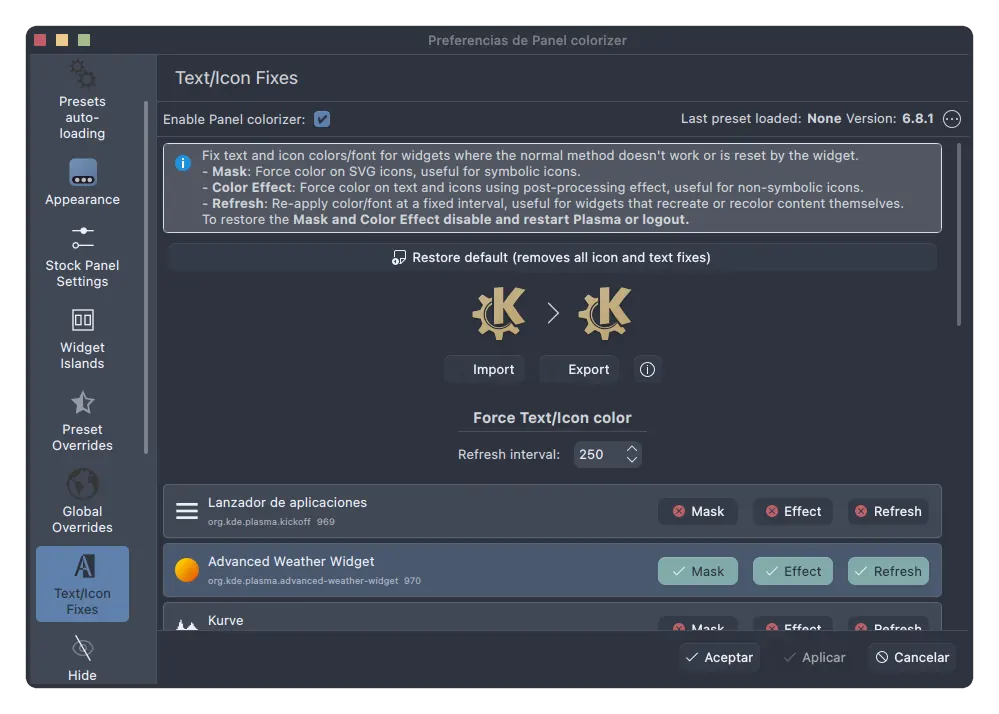
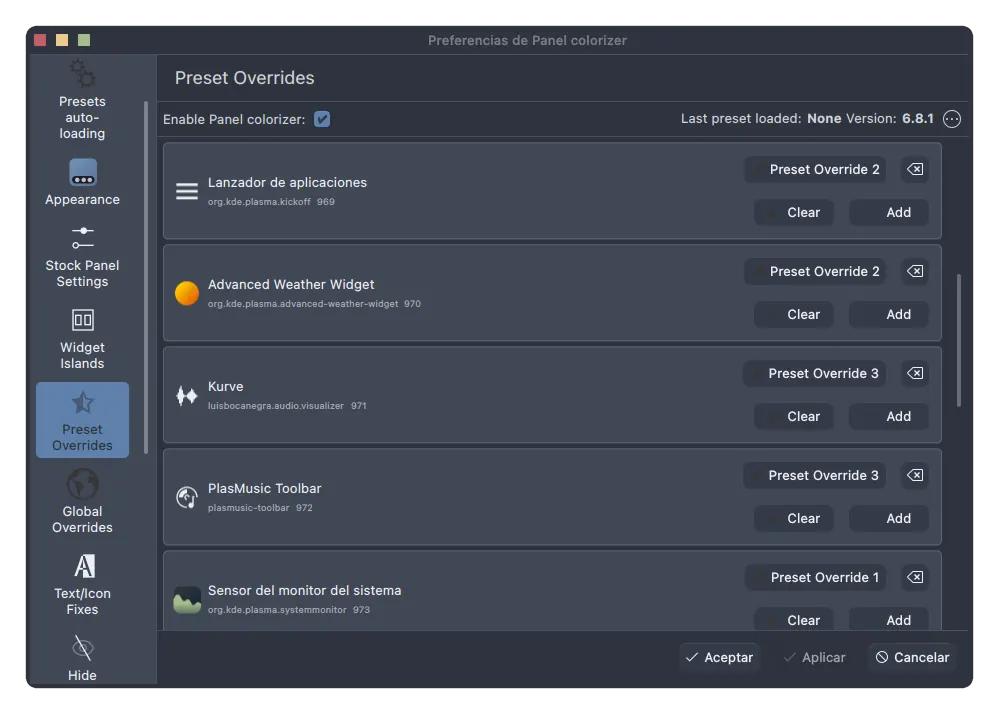
Then navigate to the Preset Overrides section. In the right panel you will see that 3 presets have already been created: 1, 2, and 3. In the plasmoid list, each entry has an “Add” button. Below is the preset to assign to each plasmoid:
- Application Launcher and Advanced Weather Widget → preset 2
- Kurve and PlasMusic Toolbar → preset 3
- System Monitor → preset 1
- System Tray, HTML Clock, and Show Desktop → preset 2
Apply the changes and you are done.
To ensure all Plasma elements render correctly, refresh the desktop: press Alt + F2 and enter the following command: plasmashell --replace.
Applying themes, colors, and icons
Apply the Plasma theme and color scheme from the terminal:
plasma-apply-desktoptheme Zephyr && plasma-apply-colorscheme ZafiroNordBlue
Open the KDE System Settings:
systemsettings
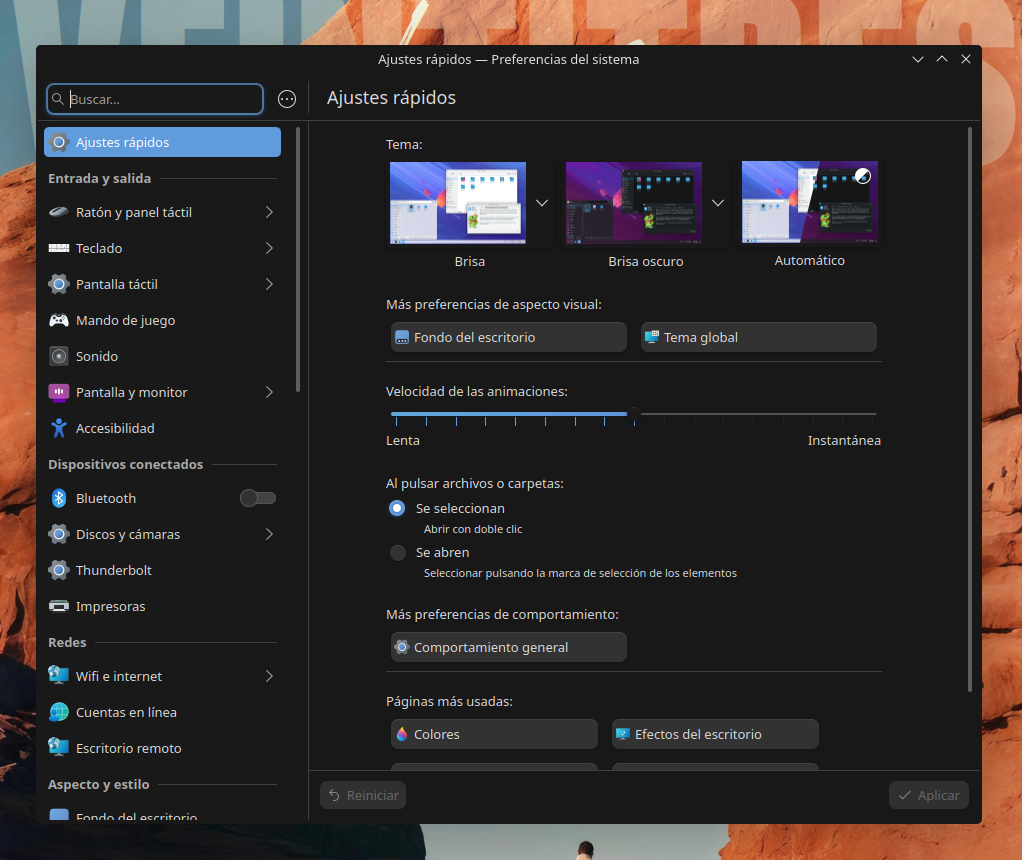
In the left panel, go to “Colors & Themes” and configure the following:
- Window Decorations → select
ketsaSquare - Icons → select
ColorFlow.Agresive.Color
Wallpaper
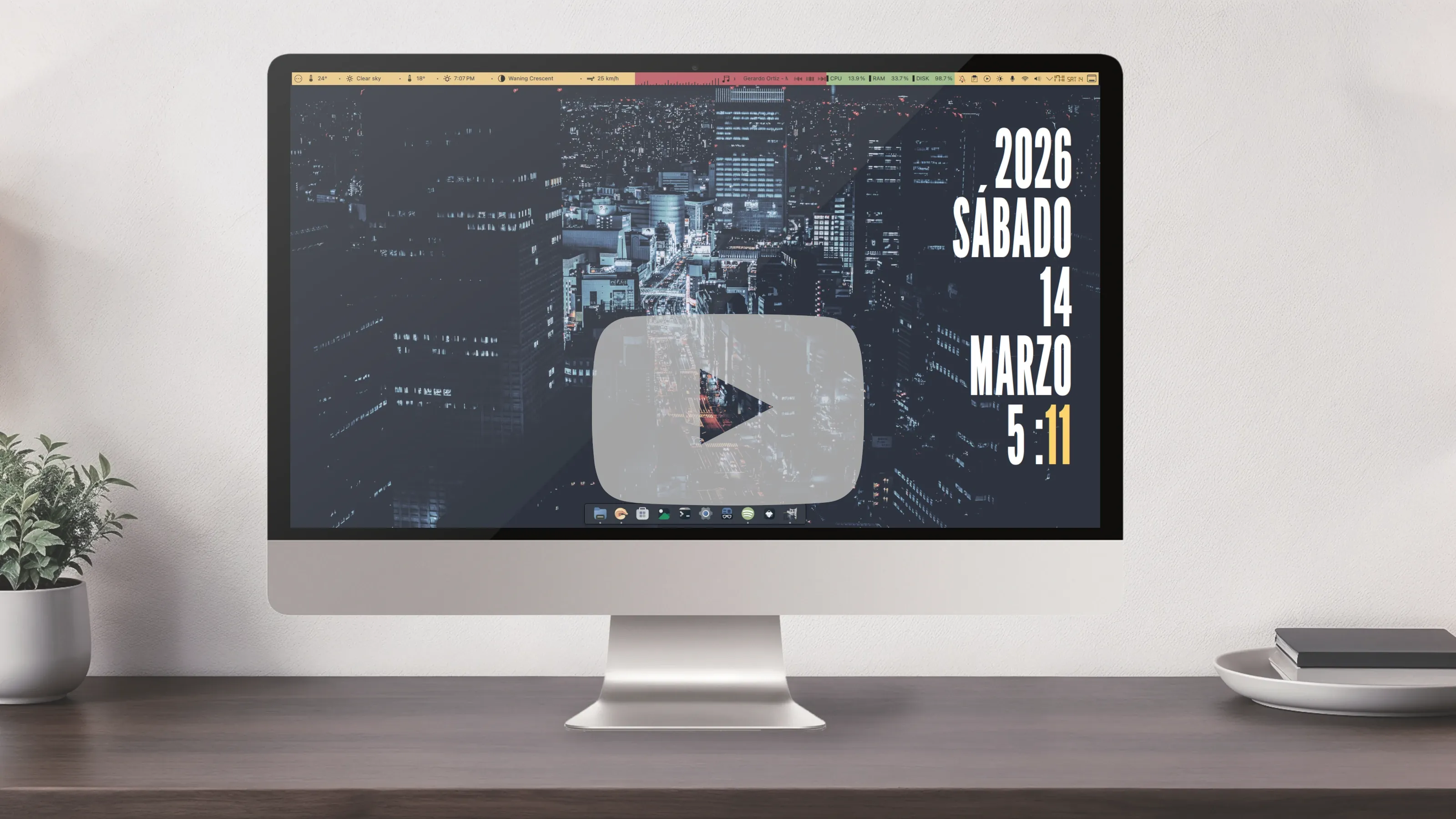
At this point the desktop should look very similar to the screenshot at the top. The only thing missing is the wallpaper; download it from here.

Comentarios