Light v1 Theme
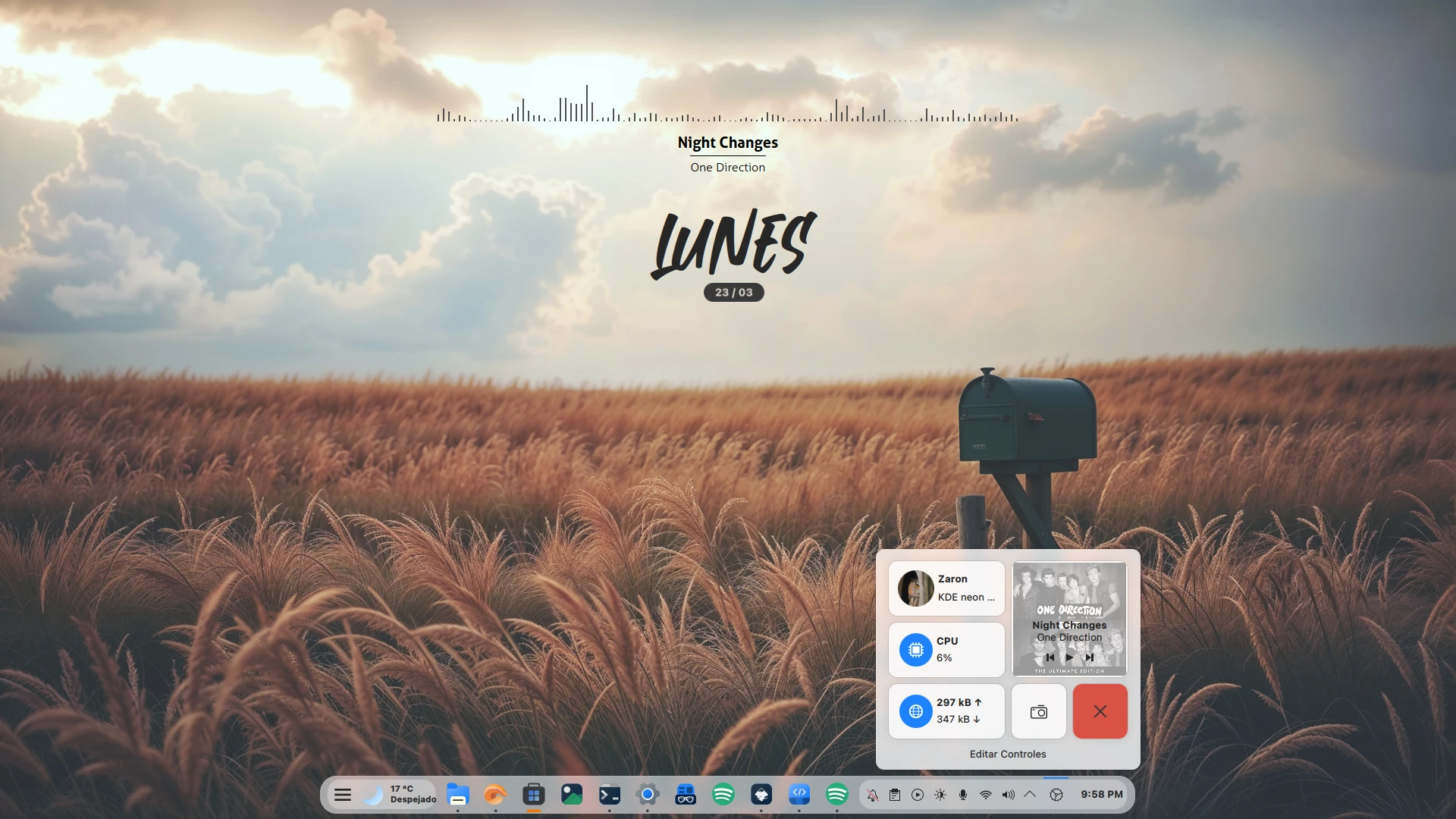
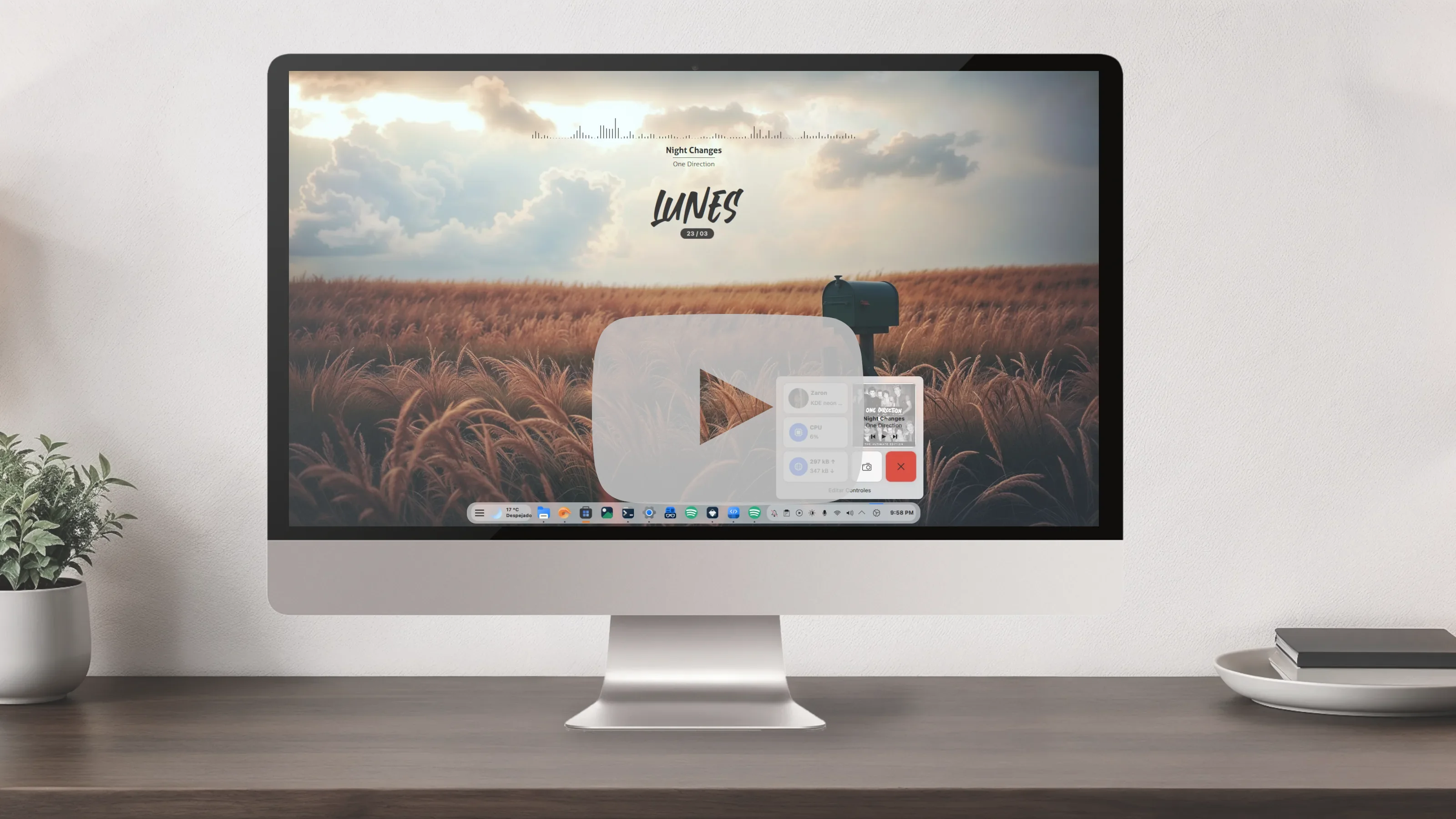
This is a desktop configuration inspired by Windows and Deepin.
Prerequisites
Before starting, make sure you have kpackagetool6, cava, qt6-websockets-dev, qdbus, and python3-websockets installed. Install them according to your distribution with the following command:
# Ubuntu and derivatives
sudo apt install kpackagetool6 cava qt6-websockets-dev python3-websockets qdbus-qt6

# Arch Linux and derivatives
sudo pacman -Syu kpackage cava qt6-websockets python-websockets qt6-tools

# Fedora
sudo dnf install kpackage cava qt6-qtwebsockets-devel python-websockets qt6-qttools

# openSUSE
sudo zypper install kpackage cava qt6-websockets-imports python3-websockets qt6-tools
Download and installation
Open a terminal and make sure you are in your home directory. The entire process is done from here:
cd ~
Download and extract the themes in a single step:
wget -qO- https://github.com/zayronxio/Librepixels.Page.cdn/releases/download/lightv1themes/lightv1themes.tar.xz | tar -xJ
Create the necessary directories if they don’t exist:
mkdir -p ~/.local/share/{icons,aurorae/themes,color-schemes} ~/.fonts
Enter the themes directory:
cd ~/lightv1themes
Install all components in sequence. You can copy and paste the entire block into the terminal:
# Plasma Theme
kpackagetool6 -t Plasma/Theme -i Clay.Theme.tar.xz && rm Clay.Theme.tar.xz

# Window decoration (Aurorae)
tar -xJf clay.tar.xz -C ~/.local/share/aurorae/themes && rm clay.tar.xz

# Color scheme
tar -xJf DeepinV2.tar.xz -C ~/.local/share/color-schemes && rm DeepinV2.tar.xz

# Icons
tar -xJf ColorFlow.tar.xz -C ~/.local/share/icons && rm ColorFlow.tar.xz

# Plasmoids
kpackagetool6 -t Plasma/Applet -i Date.Urban.kde.tar.xz && rm Date.Urban.kde.tar.xz
kpackagetool6 -t Plasma/Applet -i htmlclock-2.1.0.plasmoid && rm htmlclock-2.1.0.plasmoid
kpackagetool6 -t Plasma/Applet -i Freyry.Weather.tar.xz && rm Freyry.Weather.tar.xz
kpackagetool6 -t Plasma/Applet -i plasmoid-panel-colorizer-v6.8.1.plasmoid && rm plasmoid-panel-colorizer-v6.8.1.plasmoid
kpackagetool6 -t Plasma/Applet -i Kurve-v3.5.0.plasmoid && rm Kurve-v3.5.0.plasmoid
kpackagetool6 -t Plasma/Applet -i org.kde.MinimalMusic.P6.tar.xz && rm org.kde.MinimalMusic.P6.tar.xz
kpackagetool6 -t Plasma/Applet -i Plasma.Flex.Hub.tar.xz && rm Plasma.Flex.Hub.tar.xz
Do not continue if any installation fails; reinstall the missing plasmoid before proceeding.
Desktop configuration
Manually configuring all KDE Plasma panels is very time-consuming. Instead, we will use D-Bus to do it faster. Copy, paste, and run the following command; it sets everything up automatically.
Warning: Running the script will erase your current panel configuration. Make sure all plasmoids are installed before continuing.
cd ~/lightv1themes && qdbus6 org.kde.plasmashell /PlasmaShell org.kde.PlasmaShell.evaluateScript "$(cat scriptFullConfigs.js)"
qdbus6 org.kde.plasmashell /PlasmaShell org.kde.PlasmaShell.evaluateScript "$(cat scriptDeskWidgets.js)"
Panel Colorizer
The configuration is only partially loaded when the JS script runs. To finish configuring it manually, right-click on the top panel and select “Configure Panel Colorizer”. Navigate to the Preset Overrides section. In the right panel you will see that a preset has already been created. In the plasmoids list, each one has an “Add” button. Assign the preset to the following plasmoids:
- Application Launcher
- Freyry
- System Tray
- Flex Hub
- Digital Clock
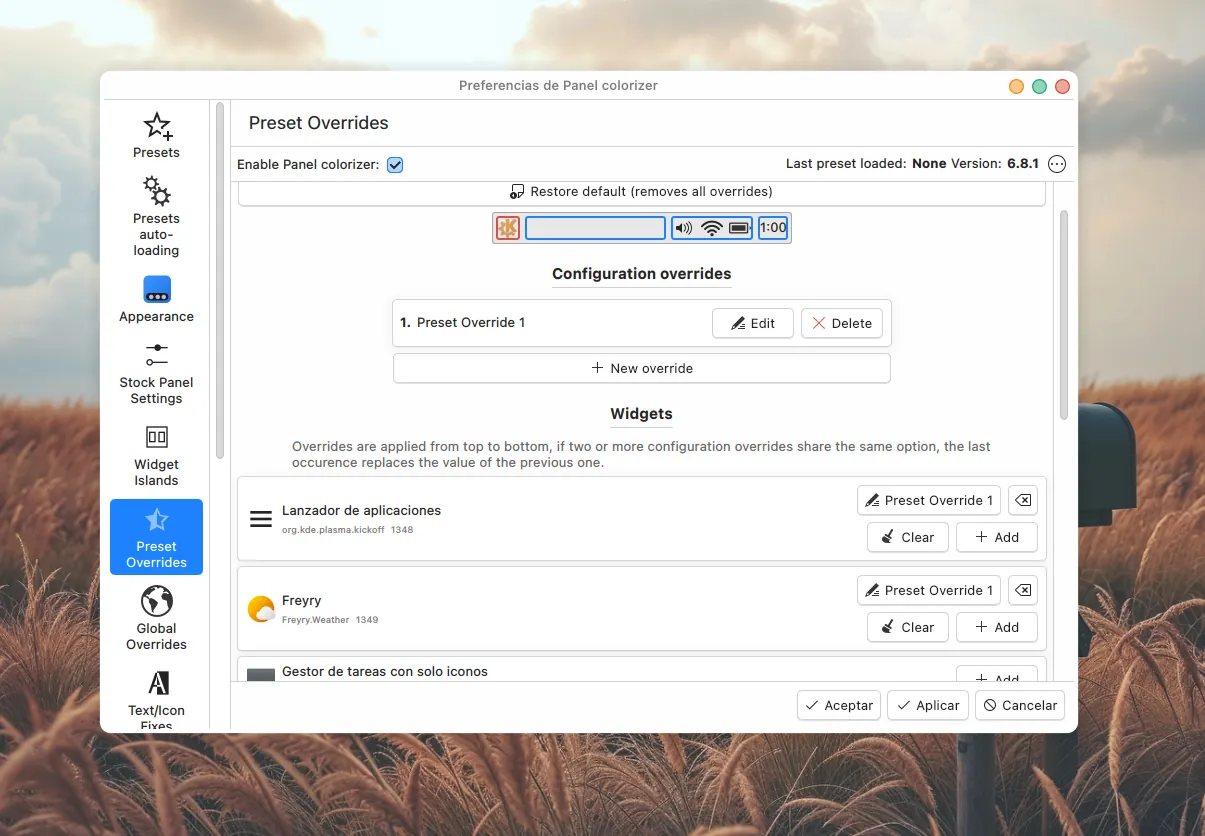
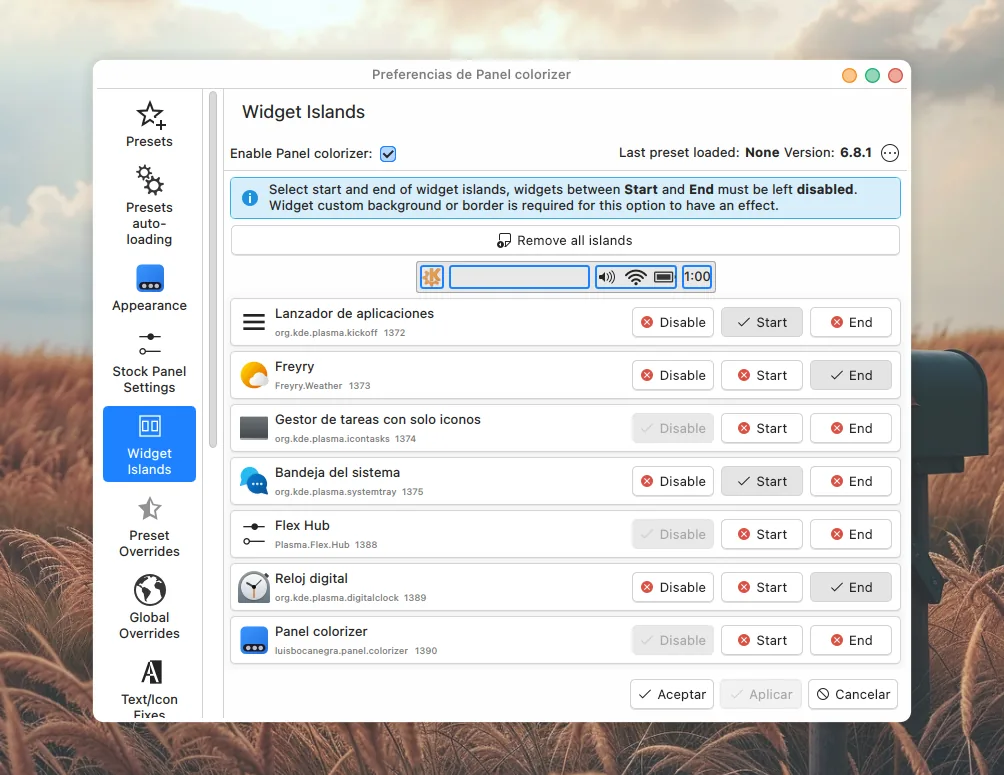
Apply the changes and switch to the Widget Island section. In the right panel you will see a list of all the plasmoids on the panel, each with 3 buttons: disable, start, and end. All will appear as disabled; change the following ones:
- Application Launcher → Start
- Freyry → End
- System Tray → Start
- Digital Clock → End
Apply and accept.
To ensure all Plasma elements render correctly, refresh the desktop: press Alt + F2 and enter the following command: plasmashell --replace.
Applying themes, colors, and icons
Apply the Plasma theme and color scheme from the terminal:
plasma-apply-desktoptheme Clay.Theme && plasma-apply-colorscheme DeepinV2
Open the KDE System Settings:
systemsettings
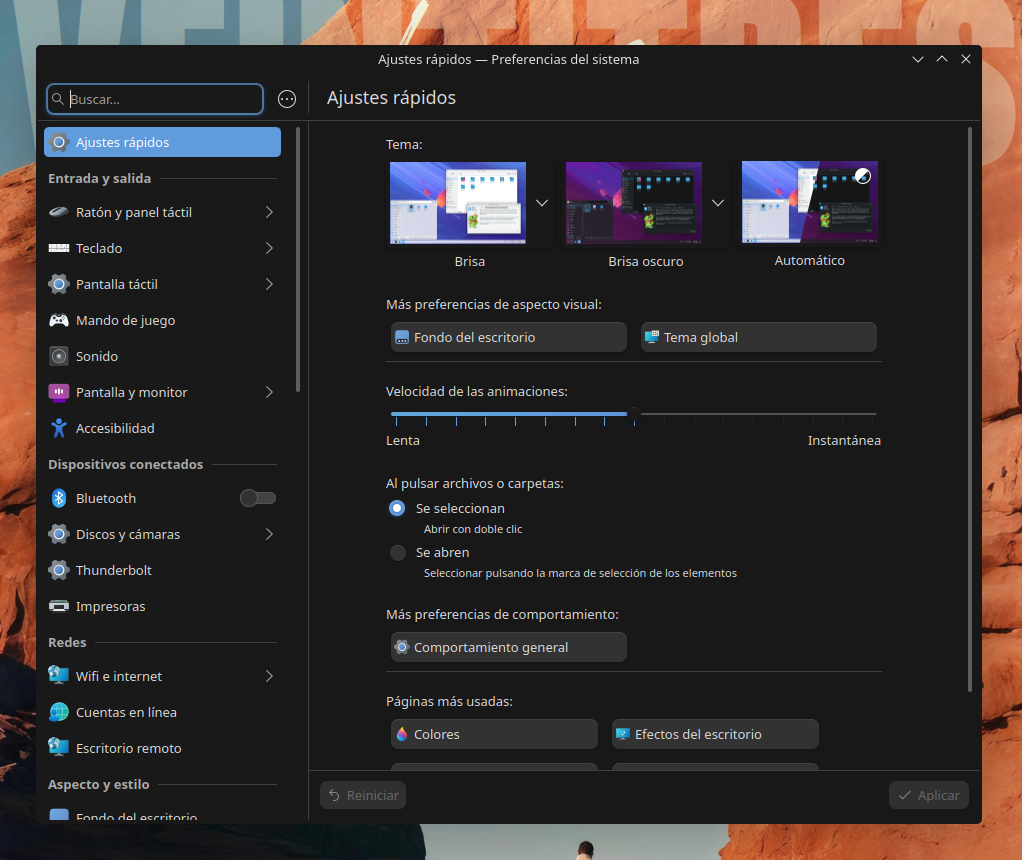
In the left panel, go to “Colors & Themes” and configure the following:
- Window Decorations → select
Clay - Icons → select
ColorFlow.Agresive.Color
Wallpaper
At this point the desktop should look very similar to the screenshot at the top. The only thing left is the wallpaper; download it from here.

Comentarios