Heimdal Theme
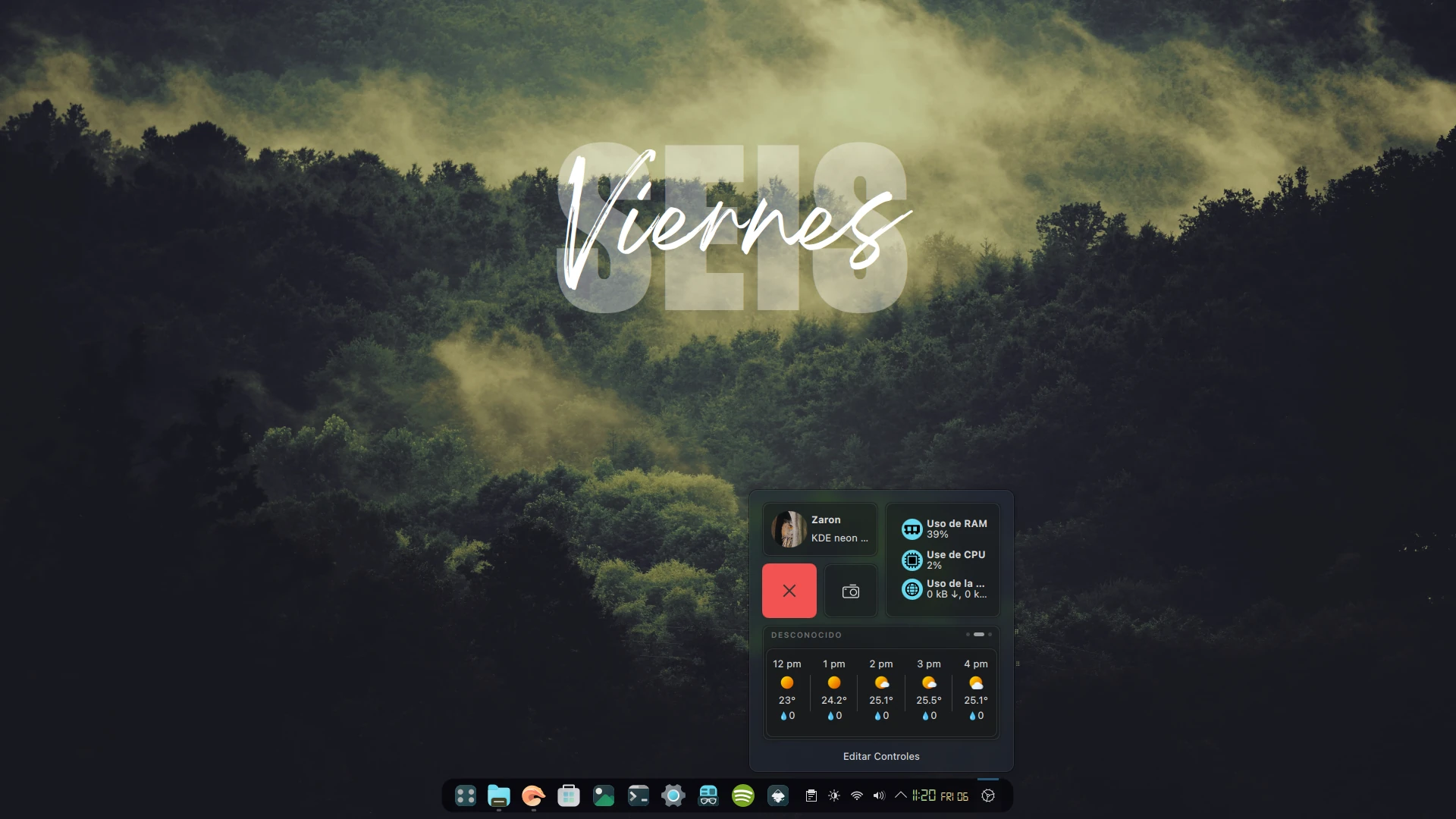
This setup is heavily inspired by jomada’s work with the ned theme, but using my own Heimdal Green color palette. Since it is simpler than other configurations, there is a global theme available in the KDE Store called Heimdal Green v2. Try installing that global theme first, as it is the easiest path; if it fails, you can follow this tutorial, which is less likely to run into issues.
Prerequisites
Before starting, make sure kpackagetool6 is installed. Install it according to your distribution:
# Ubuntu and derivatives
sudo apt install kpackagetool6

# Arch Linux and derivatives
sudo pacman -Syu kpackage

# Fedora
sudo dnf install kpackage

# openSUSE
sudo zypper install kpackage
Download and Installation
Open a terminal and make sure you are in your home directory. The entire process takes place from here:
cd ~
Download and extract the themes in a single step:
wget -qO- https://github.com/zayronxio/Librepixels.Page.cdn/releases/download/heimdalGreenTheme/heimdalgreentheme.tar.xz | tar -xJ
Create the required directories if they do not already exist:
mkdir -p ~/.local/share/{icons,aurorae/themes,color-schemes} ~/.fonts
Enter the themes directory:
cd ~/heimdalgreentheme
Install all components in sequence. You can copy and paste the entire block into your terminal:
# Plasma Theme
kpackagetool6 -t Plasma/Theme -i Rich.Teal.Sea.tar.xz && rm Rich.Teal.Sea.tar.xz

# Window Decoration (Aurorae)
tar -xJf ketsaSquare.tar.xz -C ~/.local/share/aurorae/themes && rm ketsaSquare.tar.xz

# Color Scheme
tar -xJf HeimdalGreen.tar.xz -C ~/.local/share/color-schemes && rm HeimdalGreen.tar.xz

# Icons
tar -xJf ColorFlow.tar.xz -C ~/.local/share/icons && rm ColorFlow.tar.xz

# Font
tar -xJf digital_7.tar.xz -C ~/.fonts && rm digital_7.tar.xz

# Plasmoids
kpackagetool6 -t Plasma/Applet -i OnlyText.Date.Kde.tar.xz && rm OnlyText.Date.Kde.tar.xz
kpackagetool6 -t Plasma/Applet -i htmlclock-2.1.0.plasmoid && rm htmlclock-2.1.0.plasmoid
kpackagetool6 -t Plasma/Applet -i Plasma.Flex.Hub.tar.xz && rm Plasma.Flex.Hub.tar.xz
kpackagetool6 -t Plasma/Applet -i Kickoff.Concepto.menu.tar.gz && rm Kickoff.Concepto.menu.tar.gz
kpackagetool6 -t Plasma/Applet -i luisbocanegra.desktop.wallpaper.effects.tar.xz && rm luisbocanegra.desktop.wallpaper.effects.tar.xz
Do not continue if any installation fails; reinstall the missing plasmoid before proceeding.
Desktop Configuration
Manually configuring all KDE Plasma panels is very time-consuming. Instead, we will use plasma-interactiveconsole to run a JS script that handles everything automatically.
Warning: Running the script will erase your current panel configuration. Make sure all plasmoids are installed before continuing.
Open the interactive console:
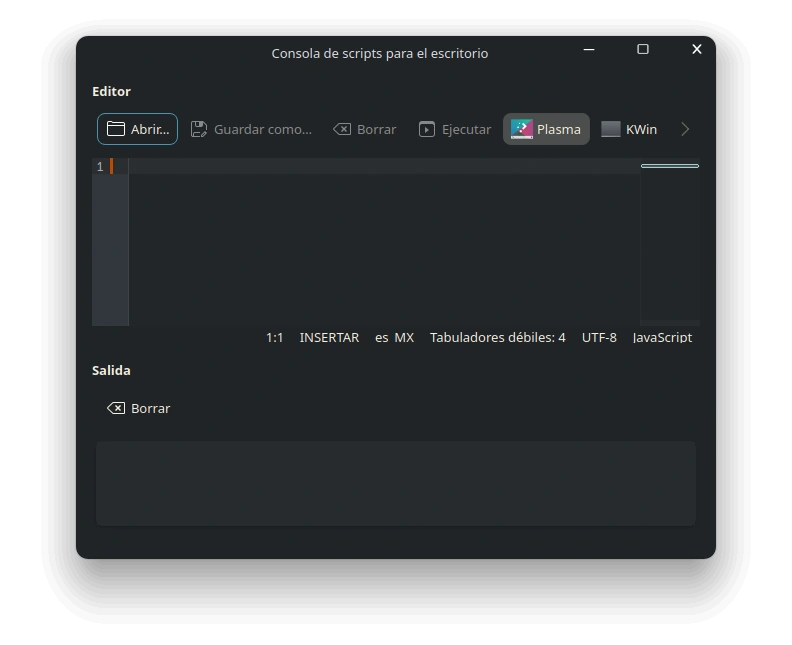
plasma-interactiveconsole
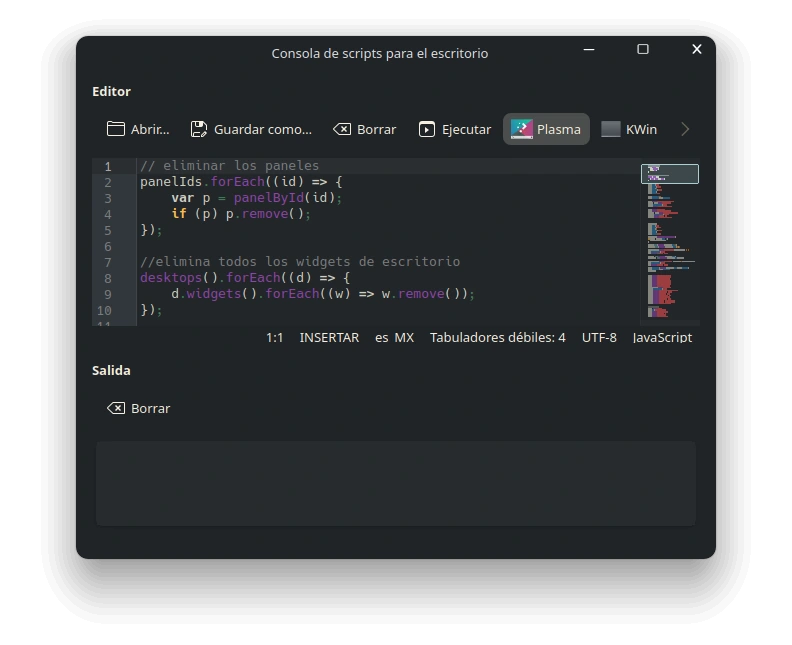
In the window, click “Open” and select the file scriptFullConfigs inside the ~/heimdalgreentheme directory. Its contents will load automatically. You can review the code before running it. Once executed, the panels and widgets will be configured automatically.
To ensure all Plasma elements render correctly, try refreshing the desktop: press Alt + F2 and enter the following command: plasmashell --replace.
Applying Themes, Colors, and Icons
Apply the Plasma theme and color scheme from the terminal:
plasma-apply-desktoptheme Rich.Teal.Sea && plasma-apply-colorscheme HeimdalGreen
Open the KDE System Settings:
systemsettings
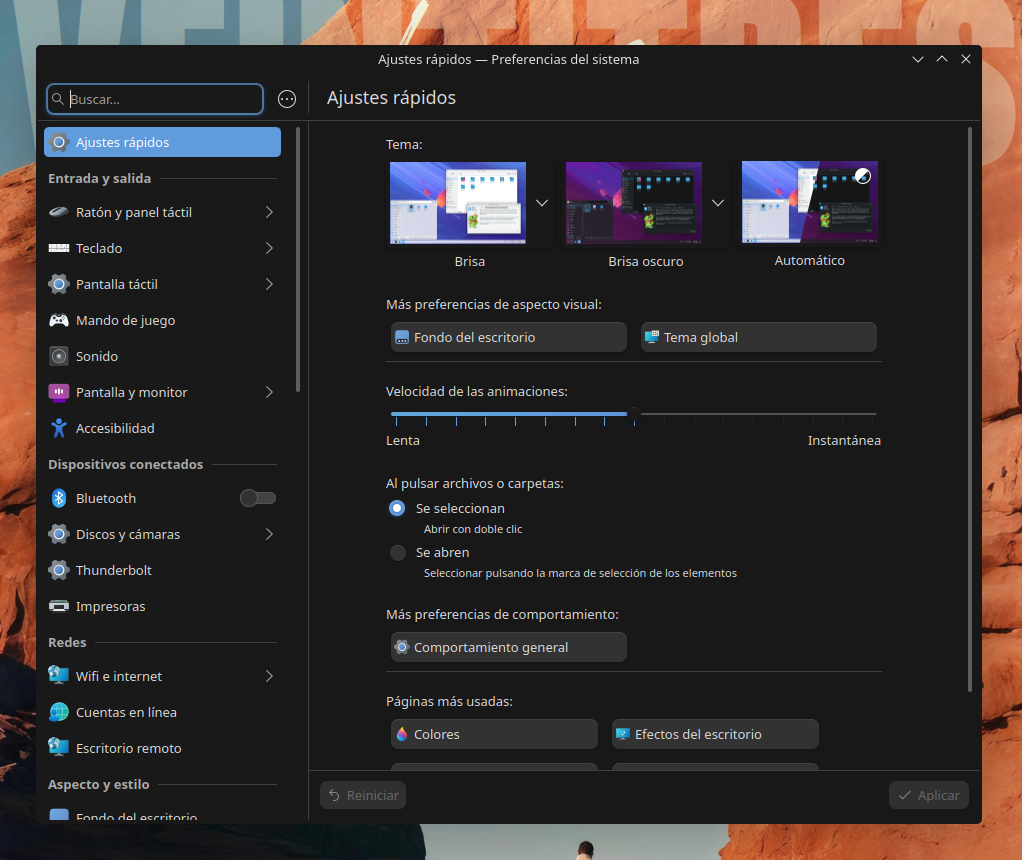
In the left panel, go to “Colors & Themes” and configure the following:
- Window Decoration → select
ketsaSquare - Icons → select
ColorFlow.Agresive.Color
Wallpaper
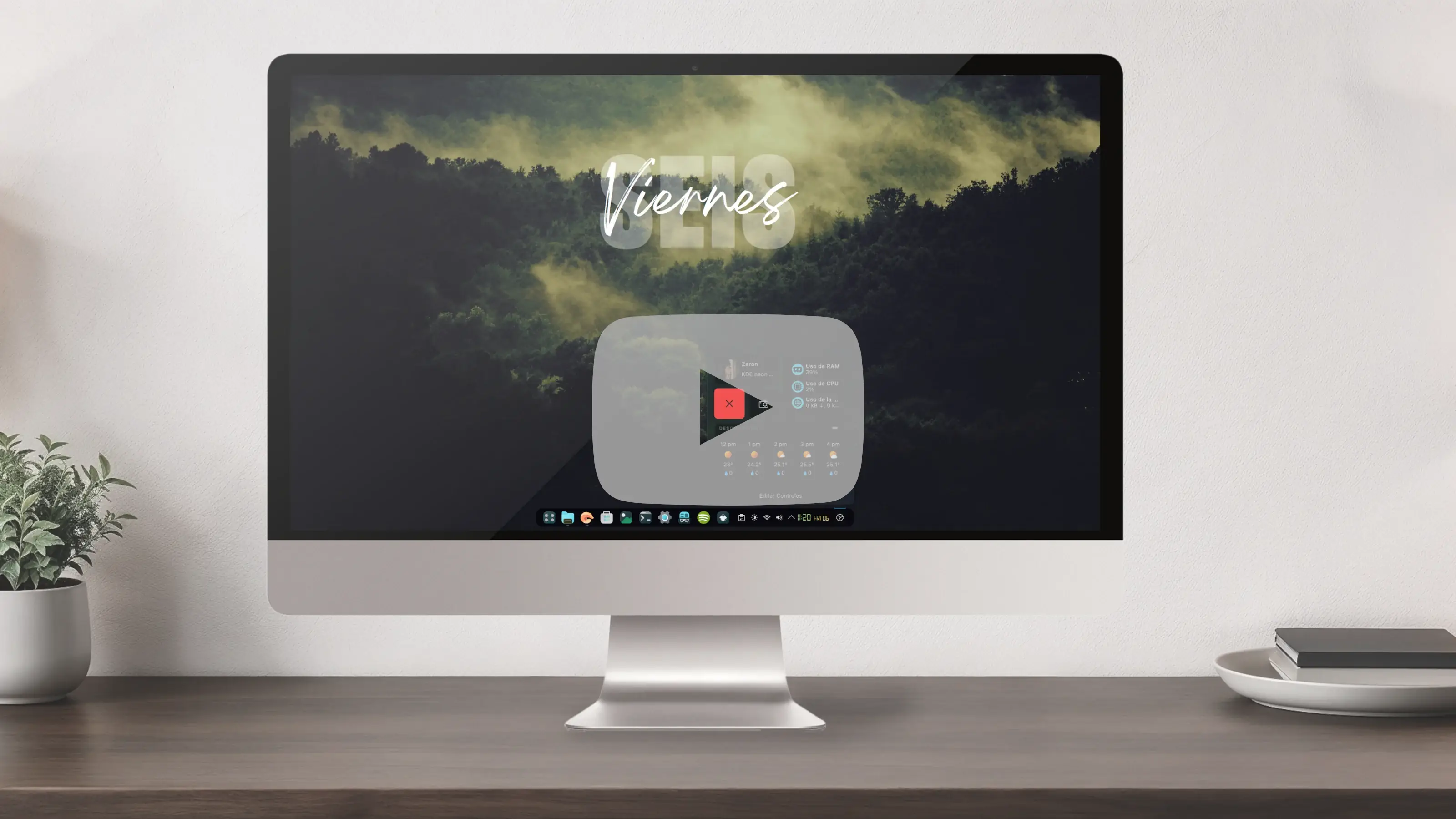
At this point the desktop should look very similar to the screenshot at the top. The only thing missing is the wallpaper; download it from here.
Credits
Kickoff Concepto by vicko desktop wallpaper effects by luis_bocanegra HTML Clock by marcinorlowski
Comentarios