Catppuccin Theme
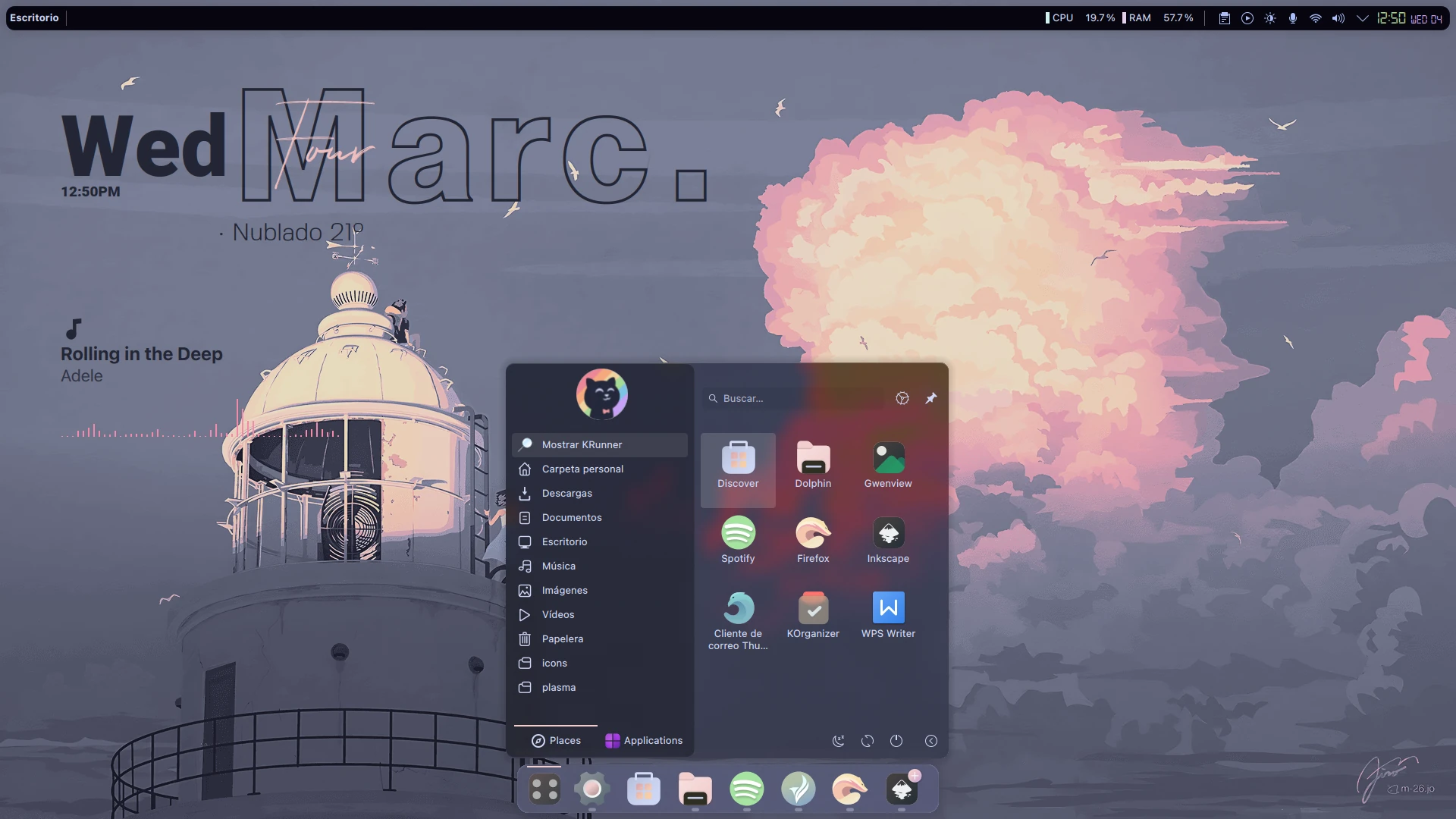
The Catppuccin color palette is highly regarded in the GNU/Linux customization community. Today I’m sharing a straightforward step-by-step tutorial for a setup inspired by this wonderful color palette, designed for KDE Plasma 6.6 or higher.
Prerequisites
Before starting, make sure you have kpackagetool6, cava, qt6-websockets-dev, and python3-websockets installed. You can install them depending on your distribution:
- Ubuntu and derivatives:
sudo apt install kpackagetool6 cava qt6-websockets-dev python3-websockets - Arch Linux and derivatives:
sudo pacman -Syu kpackage cava qt6-websockets python-websockets - Fedora:
sudo dnf install kpackage cava qt6-qtwebsockets-devel python-websockets - openSUSE:
sudo zypper install kpackage cava qt6-websockets-imports python3-websockets
The installation will be done mostly from the terminal. Open one and make sure you are in your home directory by running:
cd
Now download the themes and plasmoids we will be using:
wget https://github.com/zayronxio/Librepixels.Page.cdn/releases/download/CatppuccinTheme/catppuccinthemes.tar.xz
Extract the archive:
tar -xJf catppuccinthemes.tar.xz
Make sure the required installation directories exist:
mkdir -p ~/.local/share/{icons,aurorae/themes,color-schemes} ~/.fonts
Navigate to the themes directory:
cd catppuccinthemes
Install the Plasma theme (EclipseShade):
kpackagetool6 -t Plasma/Theme -i EclipseShade.tar.xz && rm EclipseShade.tar.xz
Install the Aurorae window decoration theme:
tar -xJf ketsaSquare.tar.xz -C $HOME/.local/share/aurorae/themes && rm ketsaSquare.tar.xz
Install the color scheme:
tar -xJf CatppuccinMochaFlamingo.tar.xz -C $HOME/.local/share/color-schemes && rm CatppuccinMochaFlamingo.tar.xz
Install the icon theme:
tar -xJf ColorFlow.tar.xz -C $HOME/.local/share/icons && rm ColorFlow.tar.xz
Install the font:
tar -xJf digital_7.tar.xz -C $HOME/.fonts && rm digital_7.tar.xz
Install all 7 plasmoids. Make sure each installation completes successfully — if any one fails, it may cause problems further along in the process.
kpackagetool6 -t Plasma/Applet -i Aligned.Music.Widget.tar.xz && rm Aligned.Music.Widget.tar.xz
kpackagetool6 -t Plasma/Applet -i zayron.simple.separator.tar.xz && rm zayron.simple.separator.tar.xz
kpackagetool6 -t Plasma/Applet -i Lyndo.Kde.tar.xz && rm Lyndo.Kde.tar.xz
kpackagetool6 -t Plasma/Applet -i htmlclock-2.1.0.plasmoid && rm htmlclock-2.1.0.plasmoid
kpackagetool6 -t Plasma/Applet -i Kurve-v3.4.0.plasmoid && rm Kurve-v3.4.0.plasmoid
kpackagetool6 -t Plasma/Applet -i org.kde.windowtitle.Fork.tar.xz && rm org.kde.windowtitle.Fork.tar.xz
kpackagetool6 -t Plasma/Applet -i plasmoid-panel-colorizer-v6.8.1.plasmoid && rm plasmoid-panel-colorizer-v6.8.1.plasmoid
kpackagetool6 -t Plasma/Applet -i Kickoff.Concepto.menu.tar.gz && rm Kickoff.Concepto.menu.tar.gz
Desktop Configuration
Manually configuring every element across all KDE Plasma panels can be very time-consuming. Instead, we’ll use plasma-interactiveconsole to run a JS script that does everything automatically. Open the console with:
plasma-interactiveconsole
In the console window, click open and locate the file scriptFullConfigs inside the catppuccinthemes directory in your home folder. Its contents will load automatically. Feel free to review the code if you wish. Keep in mind that running it will erase your current panel configuration and replace it with the theme’s layout.
To add the desktop widgets/plasmoids, repeat the process above but load the scriptDeskWidgets.js script instead of scriptFullConfigs.
Important: do not run these scripts unless you have confirmed that all plasmoids were installed successfully. Otherwise the process will fail and you may end up with no panels.
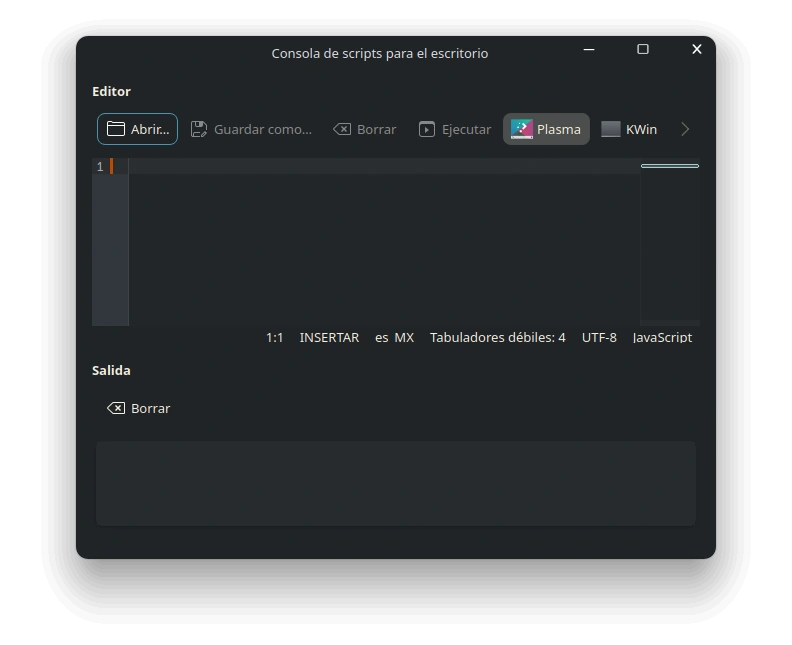
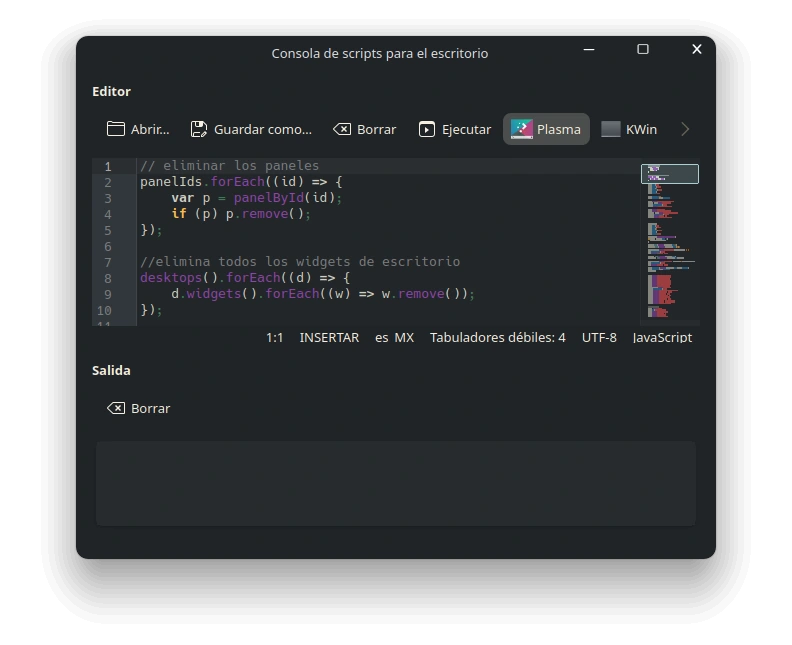
Once both scripts have run, the panels and widgets will be configured automatically.
Applying Themes, Colors, Icons, and Aurorae
First, let’s try to configure things from the terminal.
Apply the Plasma theme and color scheme:
plasma-apply-desktoptheme EclipseShade && plasma-apply-colorscheme CatppuccinMochaFlamingo
Open the KDE Plasma System Settings:
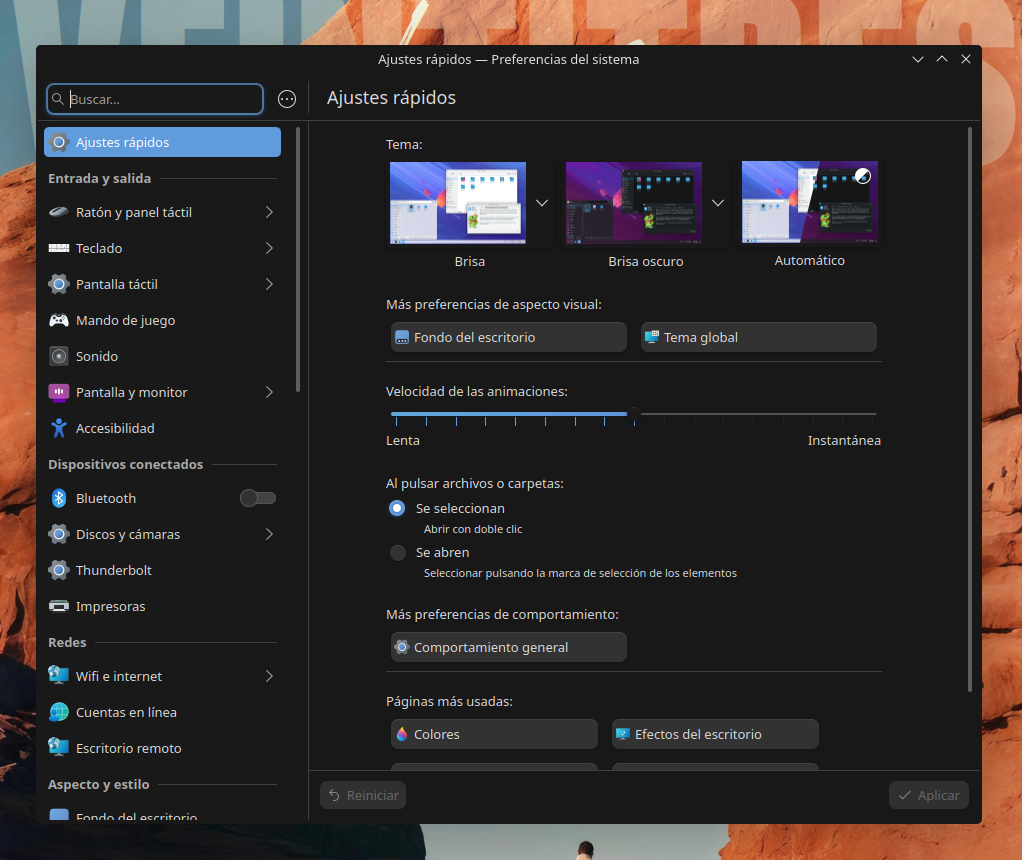
In the left panel, go to “Colors & Themes”. Under the Window Decorations subsection, select “ketsaSquare”, and under the Icons subsection, select “ColorFlow.Agresive.Color”.
To ensure the correct rendering of all KDE Plasma elements, try refreshing the desktop. Press Alt + F2 and enter the following command: plasmashell –replace.
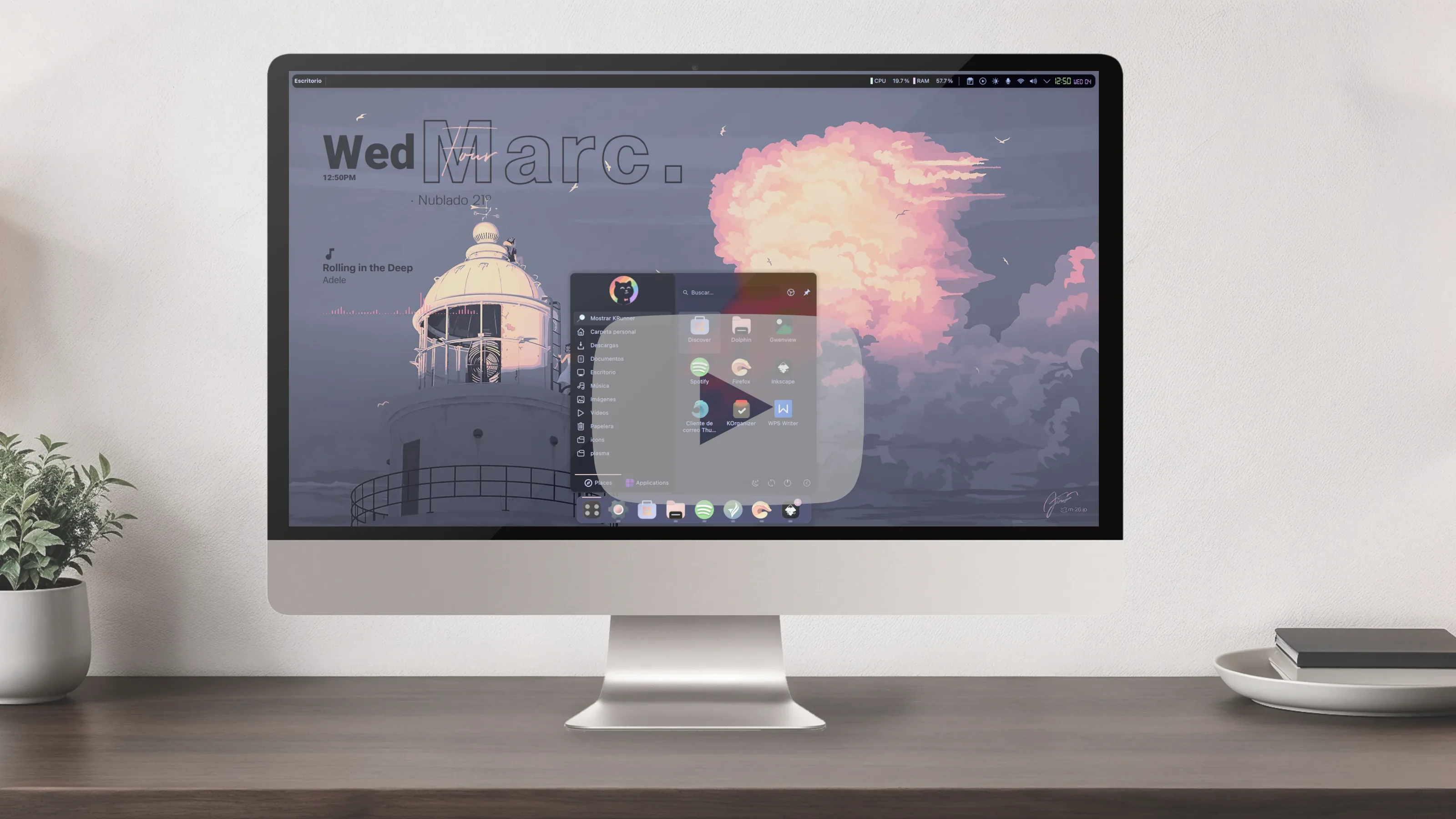
At this point your desktop should look very similar to the screenshot at the top of this post. The only thing left is the wallpaper — download it here.

Credits
To luis-bocanegra for the Panel Colorizer and Kurve plasmoids:
Pling.com
To marcinorlowski for the HTML Clock plasmoid:
HTML Clock
To vicko for the Kickoff Menu Concept plasmoid:
Kickoff Menu Concept
To Catppuccin for the Catppuccin Mocha Colors palette:
Catppuccin Mocha Colors
Comentarios