Amethyst Haze Theme
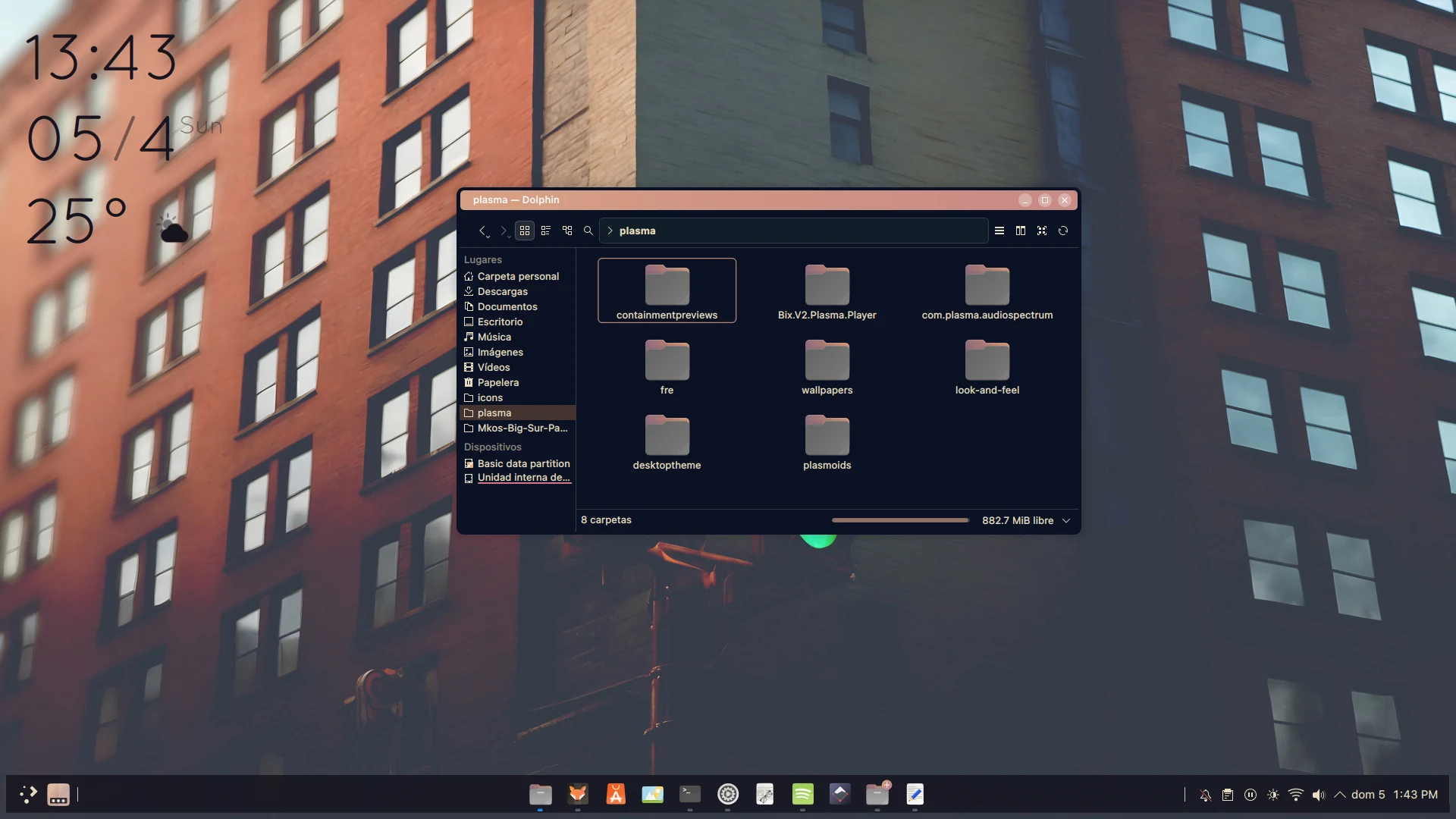
This configuration is much simpler than previous ones and in most cases you can install it directly from the KDE Store using the Amethyst Haze global theme. If the process fails, you can use this tutorial instead.
Prerequisites
Before starting, make sure you have kpackagetool6 and qdbus installed. Install them according to your distribution with the following command:
# Ubuntu and derivatives
sudo apt install kpackagetool6 qdbus-qt6

# Arch Linux and derivatives
sudo pacman -Syu kpackage qt6-tools

# Fedora
sudo dnf install kpackage qt6-qttools

# openSUSE
sudo zypper install kpackage qt6-tools
Download and installation
Open a terminal and make sure you are in your home directory. The entire process is done from here:
cd ~
Download and extract the themes in a single step:
wget -qO- https://github.com/zayronxio/Librepixels.Page.cdn/releases/download/AmethystHazeV1/AmethystHazeTheme.tar.xz | tar -xJ
Create the necessary directories if they don’t exist:
mkdir -p ~/.local/share/{icons,aurorae/themes,color-schemes} ~/.fonts
Enter the themes directory:
cd ~/AmethystHazeTheme
Install all components in sequence. You can copy and paste the entire block into the terminal:
# Plasma theme
kpackagetool6 -t Plasma/Theme -i Amethyst.Haze.tar.xz && rm Amethyst.Haze.tar.xz

# Window decoration (Aurorae)
tar -xJf Alba.tar.xz -C ~/.local/share/aurorae/themes && rm Alba.tar.xz

# Color scheme
tar -xJf AmethystHazeColor.tar.xz -C ~/.local/share/color-schemes && rm AmethystHazeColor.tar.xz

# Icons
tar -xJf YaruPlasma-Dark.tar.xz -C ~/.local/share/icons && rm YaruPlasma-Dark.tar.xz

# Plasmoids
kpackagetool6 -t Plasma/Applet -i Redmi.Clock.tar.xz && rm Redmi.Clock.tar.xz
Do not continue if any installation fails; reinstall the missing plasmoid before proceeding.
Desktop configuration
Manually configuring all KDE Plasma panels is very time-consuming. Instead, we will use D-Bus to speed up the process. Copy, paste, and run the following command — it configures everything automatically.
Warning: Running the script will erase your current panel configuration. Make sure all plasmoids are installed before continuing.
cd ~/AmethystHazeTheme && qdbus6 org.kde.plasmashell /PlasmaShell org.kde.PlasmaShell.evaluateScript "$(cat scriptFullConfigs.js)"
To ensure all Plasma elements render correctly, refresh the desktop: press Alt + F2 and enter the following command: plasmashell --replace.
Applying themes, colors, and icons
Apply the Plasma theme and color scheme from the terminal:
plasma-apply-desktoptheme Amethyst.Haze && plasma-apply-colorscheme AmethystHaze
Open the KDE System Settings:
systemsettings
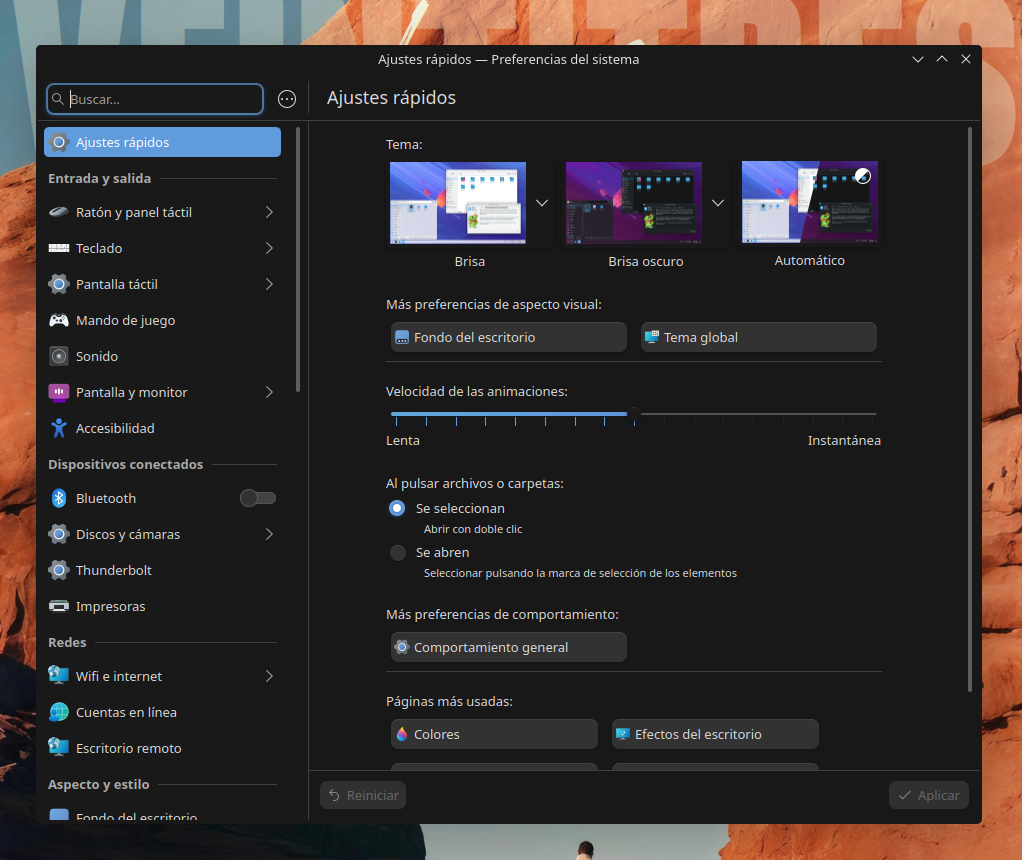
In the left panel, go to “Colors & Themes” and configure the following:
- Window Decorations → select
Alba - Icons → select
YaruPlasma-Dark
Wallpaper
At this point the desktop should look very similar to the screenshot at the top. All that’s left is the wallpaper — download it from here.
Comentarios